How to Use WhatsApp Web on PC (And Get the Most Out of It)
Typing long replies on a phone keyboard is one of those small frustrations that accumulates over a workday. WhatsApp Web solves it in two minutes - open a browser, scan a QR code, and your entire WhatsApp is on your computer screen. No installation, no account transfer, no setup beyond that one scan. Your messages sync in real time across both devices, and you can send files directly from your desktop with a drag and drop.
Here's how to get it running, what to watch for, and how to use it properly rather than just barely.
Quick Answer (For Those in a Hurry)
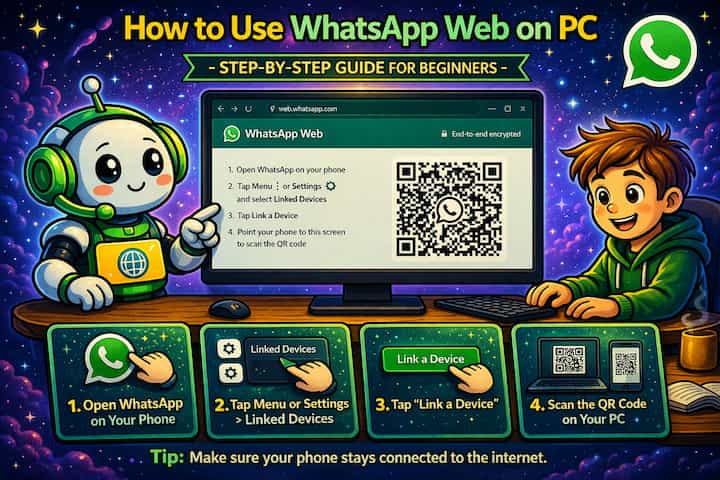
Go to web.whatsapp.com in any browser on your PC. Open WhatsApp on your phone, go to Settings -> Linked Devices -> Link a Device, and scan the QR code on your screen. Your chats appear on the computer within seconds and stay synced in real time. You don't need to keep your phone connected to the internet for the session to stay active - WhatsApp Web now works independently once linked.
What This Guide Actually Helps You Do
This guide is designed for readers who want to recover or move important conversations only when the app gives you a reliable path to do it. It adds value beyond the basic menu path by explaining whether the backup or transfer method matches your phone number, cloud account, device type, and timing. That matters because people often reinstall the app or reset a phone before checking whether the backup is recent enough and linked to the right account.
The practical goal is to leave you with a result you can verify, not just a menu path you followed. It also keeps the limits visible: this guide does not pretend to offer recovering encrypted messages that were never backed up or accessing someone else's private data. It shows the reliable path, the trade-offs, and the checks that help you avoid repeating the same mistake.
Real Situations Where WhatsApp Web Changes How You Work
WhatsApp Web isn't just a convenience - for certain workflows it's genuinely a different experience.
You work at a computer all day and WhatsApp is part of how you communicate professionally. Switching between your keyboard and your phone every time a message arrives breaks your focus. With WhatsApp Web open in a browser tab, you respond without touching your phone - same typing speed as email, without the formality. For anyone whose work involves frequent WhatsApp communication with clients, suppliers, or a team, this removes the most friction-heavy part of using the app.
You need to share files from your computer directly into a WhatsApp conversation. Sending a document, a spreadsheet, or a large photo from your phone means either emailing it to yourself first or finding it in cloud storage on mobile. On WhatsApp Web, you drag a file from your desktop and drop it into the chat window. It uploads immediately. For anyone who sends work files through WhatsApp regularly - and a lot of people do - this alone justifies the two minutes of setup.
You're having a long conversation that deserves proper typing. Long replies on a phone keyboard are awkward enough that people write shorter, less thoughtful responses than they'd otherwise give. On a PC keyboard, the length and quality of your message naturally matches the conversation. This matters for anything meaningful - a detailed explanation, a nuanced response to something sensitive, a message you actually want to get right.
Before You Link: One Thing to Know
WhatsApp Web now works independently of your phone's internet connection - but it still requires your phone to exist and be active on WhatsApp. The early version of WhatsApp Web required your phone to be online constantly to relay messages through it. The current multi-device system changed this: once linked, your PC session works even if your phone's connection drops temporarily. However, if your phone is off, the account is deactivated, or you log out of WhatsApp on your phone, the Web session will eventually disconnect.
This also means your Web session can stay active for up to 14 days without being used before automatically logging out as a security measure.
How to Set Up WhatsApp Web - Step by Step
Step 1 - Open WhatsApp Web in Your Browser
On your PC, open any browser (Chrome, Firefox, Edge, Safari) and navigate to web.whatsapp.com. A QR code will appear on the screen. Leave this tab open - the code refreshes automatically if it expires before you scan it.
Step 2 - Open WhatsApp on Your Phone
Pick up your phone and open WhatsApp.
Step 3 - Go to Linked Devices
On Android, tap the three dots in the top-right corner and select Linked Devices. On iPhone, go to Settings (the gear icon at the bottom) and tap Linked Devices.
Step 4 - Tap Link a Device
Tap Link a Device. Your phone's camera will activate in QR scanning mode. You may be asked to authenticate with your fingerprint or PIN before the camera opens - this is a security step.
Step 5 - Scan the QR Code on Your PC Screen
Point your phone's camera at the QR code displayed on your computer screen. Hold it steady for a moment - the scan happens automatically without pressing anything.
Step 6 - Wait for Synchronization
Once the QR code is scanned, your phone and PC establish a secure connection. Your chat list begins loading on the computer screen within a few seconds. Recent chats appear first, and the full history loads progressively.
Step 7 - Start Using WhatsApp on Your PC
Your WhatsApp is now fully functional in the browser. Click any conversation to open it, type with your keyboard, drag and drop files to send them, and use the left sidebar to navigate between chats.
What Changes When You Use WhatsApp on PC
The experience shifts noticeably once you're on a keyboard. Typing speed increases, file sharing from your computer becomes a single drag-and-drop, and you can have multiple conversations visible in the sidebar while writing in one of them. The layout mirrors the mobile app in structure but feels fundamentally different to use - more like a messaging platform than a mobile app.
Messages you send from the PC appear on your phone simultaneously, and replies you receive arrive on both devices at the same time. Read receipts sync too - if you read a message on the PC, it shows as read on your phone and marks blue ticks for the sender.
Notifications appear as browser notifications on your PC while the tab is open, so you don't need to keep checking the tab manually. On Windows, you can also install the standalone WhatsApp Desktop app if you prefer a dedicated window rather than a browser tab - it uses the same linking process and offers the same features with slightly better performance and keyboard shortcuts.
Advanced Tips: Getting More Out of WhatsApp Web
Most people use WhatsApp Web as a basic mirror of their phone. These four approaches make it significantly more useful.
Use keyboard shortcuts to navigate and manage chats faster. WhatsApp Web has a set of keyboard shortcuts most people never discover. Ctrl + N (or Cmd + N on Mac) opens a new chat. Ctrl + Shift + ] and Ctrl + Shift + [ cycle through conversations. Ctrl + E archives a chat. These shortcuts are particularly useful when you're handling a lot of messages - you can move through conversations without touching the mouse. Press Ctrl + / in WhatsApp Web to see the full shortcuts list.
Pin WhatsApp Web as a browser tab so it stays accessible and keeps notifications running. In Chrome, right-click the WhatsApp Web tab and select Pin Tab. This keeps it as a small persistent icon at the left of your tab bar, prevents it from being accidentally closed, and keeps notification permissions active throughout your workday. On Firefox the same option is available. A pinned tab uses minimal resources while staying ready.
Log out of WhatsApp Web on shared or work computers before you leave. This is a security basic that people overlook. If you use WhatsApp Web on a computer that others also use - a shared work machine, a library computer, a family PC - your session stays active even after you close the browser window. Anyone who opens that browser can access your full WhatsApp. Go to Settings -> Linked Devices on your phone and tap the PC session to log it out remotely, or click Log Out directly in the WhatsApp Web interface before leaving.
Use the desktop app instead of the browser for a better experience on Windows or Mac. WhatsApp offers a dedicated desktop application (download from whatsapp.com/download) that works identically to the browser version but with some advantages: it opens faster, supports better system notification integration, works without a browser running, and has slightly smoother performance for heavy users. The setup is the same QR scan process. If you use WhatsApp Web regularly on the same computer, the desktop app is worth the one-time installation.
What WhatsApp Web Still Can't Do
WhatsApp Web covers the vast majority of what the mobile app offers, but a few things still require the phone. Changing your account phone number, setting up two-step verification, and managing certain account-level privacy settings are phone-only actions. These are intentionally restricted to maintain account security - changes that could affect account ownership or access require authentication on the primary device.
Voice and video calls are supported on WhatsApp Web in most browsers (Chrome and Edge work best), but the quality depends heavily on your computer's microphone and speaker setup, and some older or more restrictive browsers may block the media permissions needed. If calls on WhatsApp Web aren't working, checking browser permissions for microphone and camera is usually the fix.
The session has an automatic timeout: if you don't use WhatsApp Web for 14 days, it logs out automatically. For everyday users this never matters, but if you set up WhatsApp Web on a secondary computer you use occasionally, you may find yourself re-scanning the QR code more often than expected.
Finally, WhatsApp Web counts as one of your four allowed linked devices. If you're already using WhatsApp on a second phone and two other devices, adding WhatsApp Web would exceed the limit and require removing one of the existing linked devices first.
Frequently Asked Questions
Why does WhatsApp Web keep disconnecting even though my phone is nearby and connected? The most common cause is that your phone's battery optimization is killing WhatsApp in the background. On Android, go to Settings -> Battery -> Battery Optimization, find WhatsApp, and set it to "Don't optimize." WhatsApp needs to run in the background on your phone to maintain the linked device connection, and aggressive battery management on some devices (particularly Huawei, Xiaomi, and Samsung) terminates background apps too aggressively. Disabling battery optimization for WhatsApp specifically usually resolves persistent disconnection issues.
Can someone access my WhatsApp Web session without me knowing? Yes, if you've left a session open on a device you don't control. To see all active sessions, go to Settings -> Linked Devices on your phone - every active Web and desktop session is listed there with the approximate location and device type. If you see anything you don't recognize or didn't authorize, tap it and select Log Out to terminate that session immediately. Checking this list occasionally is a good security habit.
If I send a message on WhatsApp Web while my phone is off, does it still go through? Yes. The multi-device system means your PC session handles sending independently - messages go out through WhatsApp's servers directly from the linked PC session, not relayed through your phone. When your phone comes back online, it syncs the message history from the PC session. The exception is if your WhatsApp account itself is deactivated or if you've been logged out - in those cases the session fails regardless of internet connectivity.
Does using WhatsApp Web affect my message backups on Google Drive or iCloud? No. Backups are managed entirely by the WhatsApp app on your primary phone. Messages sent and received through WhatsApp Web are synced to your phone and included in the phone's backup, but the Web session itself has no independent backup. If you want to ensure messages from a WhatsApp Web session are backed up, make sure your phone's WhatsApp backup is set to run regularly - the content will be included.
Can I use WhatsApp Web on multiple computers at the same time? Yes, up to four linked devices total across all sessions - phones, tablets, browser sessions, and desktop apps all count toward that limit. You can have WhatsApp Web open in a browser on your work computer and the desktop app running on your home Mac simultaneously, both active at the same time. Messages sync across all of them in real time. Manage all active sessions from Settings -> Linked Devices on your phone.
What To Verify Before You Finish
A good finish looks like this: you know exactly which backup or transfer source will be used and what newer messages could be missing afterward. Before moving on, do a small real-world test: check the backup date, account name, phone number, available storage, and internet connection before uninstalling or moving anything.
If the restore prompt does not appear or the transferred history is incomplete, the most likely explanation is that the phone number, Google account, Apple ID, device pair, storage permission, or backup location does not match the original setup. In that case, use the troubleshooting or limitation section above first, because repeating the same taps usually hides the real cause.
Related Guides
Read next: Stop auto-download on WhatsApp | Create WhatsApp broadcast lists | Create a WhatsApp group step by step
Final Thoughts
WhatsApp Web is genuinely one of the most underused productivity improvements available to anyone who uses WhatsApp heavily at a desk. Two minutes to scan a QR code and suddenly you're not reaching for your phone every few minutes. The keyboard shortcuts are worth learning if you handle a lot of conversations, and the desktop app is worth installing if you find yourself keeping the browser tab open all day anyway. Set it up once and it just works - quietly, in the background, saving you a hundred small interruptions every day.