How to Use Telegram Bots (The Useful Ones, and How to Actually Get Them Working)
Telegram bots are programs that run inside Telegram and respond to commands or events automatically. They can handle moderation, send reminders, answer questions, convert files, manage polls, and dozens of other tasks - and they operate directly in your chats without any separate app or login. The hardest part isn't using them; it's finding the right one for what you actually need and understanding enough about how they work to configure them correctly when something doesn't behave as expected.
Quick Answer (For Those in a Hurry)
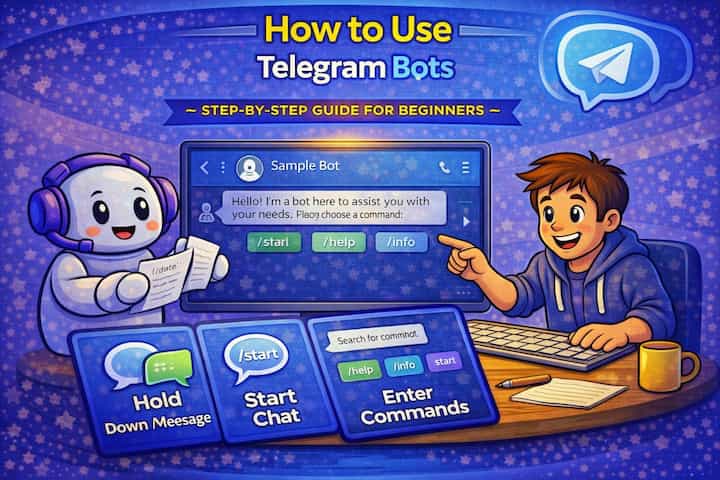
Search for a bot by name in Telegram's search bar, open it, tap Start, and follow its instructions - most bots explain their commands in the first message. To add a bot to a group, open the group, tap the group name, tap Add Members, and search for the bot. Set the bot's admin permissions in the group to only what it actually needs.
What This Guide Actually Helps You Do
This guide is designed for readers who want to set up a channel, group, or community space that works for real people after the first day. It adds value beyond the basic menu path by explaining who should be able to join, who can post, what permissions members need, and how moderation will stay manageable. That matters because new communities often fail because the setup looks finished but roles, invites, rules, and posting permissions are unclear.
The practical goal is to leave you with a result you can verify, not just a menu path you followed. It also keeps the limits visible: this guide does not pretend to offer instant growth, automatic engagement, or a community that moderates itself without clear structure. It shows the reliable path, the trade-offs, and the checks that help you avoid repeating the same mistake.
Real Situations Where Telegram Bots Make a Real Difference
Bots are most useful when they eliminate a repetitive task or automate something that would otherwise require constant manual attention.
You run an active Telegram group and spend significant time managing spam, welcoming new members, and enforcing basic rules. This is the use case where bots have the clearest return. A moderation bot like @Combot or @RoseMaryRobot handles captcha verification for new members (blocking bot accounts from joining automatically), filters spam patterns, enforces slow mode when the group gets flooded, and logs moderation actions - all without you being online. The difference between a large group with a moderation bot and one without is visible within days of growth.
You want a reminder system, a note-taking tool, or a simple automation that lives inside Telegram rather than requiring a separate app. @RemindMeBot and similar tools let you schedule reminders via a simple message - "remind me tomorrow at 3pm to call the client" - and they reply at that time. @SavedMessages is your own private bot-accessible space. For people who live in Telegram, keeping tools inside the same app rather than switching contexts for every task is genuinely useful.
You use Telegram for information gathering - news, market data, weather, exchange rates - and want that information delivered through the same interface where you communicate. News bots, crypto price bots, sports score bots - Telegram has a large ecosystem of bots that push information on a schedule or on demand. Instead of opening a separate browser tab or app, you message a bot or receive its scheduled updates in Telegram directly. For people who want aggregated information in one place, this is one of Telegram's most practical features.
Before You Start: One Thing to Know
Bots can only read messages in a group chat if they're given admin permissions or if you explicitly send them a command. A bot added to a group without admin permissions can't see regular messages exchanged between members - it can only respond when someone uses its commands. This is Telegram's privacy model for bots. However, a bot with admin permissions (particularly "Read all messages" or similar) can access the full message history. Review what permissions you're granting any bot before adding it to a group where sensitive information is shared.
How to Use Telegram Bots - Step by Step
Step 1 - Search for a Bot
Tap the search bar at the top of Telegram and type the bot's name or username (bot usernames always end in "bot" - for example, @weatherbot or @combot). Results will show both user accounts and bots. Bot accounts show a blue circular icon and a "BOT" label. You can also search by function - typing "moderation bot" or "reminder bot" in the search bar surfaces bots in Telegram's directory.

Step 2 - Open the Bot
Tap the bot's name from search results to open its profile. Before starting, check its description for what it does and any usage notes. Verify it's the legitimate version of the bot you're looking for - popular bots have imitators with similar names.
Step 3 - Start the Bot
Tap the Start button at the bottom of the screen. This sends a /start command to the bot, which activates it and usually triggers an introductory message explaining what the bot does and what commands are available. Without tapping Start, the bot can't interact with you.
Step 4 - Use Commands to Interact
Most bots use slash commands - type / in the message bar to see a list of available commands for the current bot. Commands are the primary interface: /help shows what the bot can do, /settings opens its configuration, and other commands trigger its specific features. More sophisticated bots also respond to natural language or use button interfaces rather than typed commands.
Step 5 - Interact With the Bot's Interface
After starting a bot, it may respond with inline buttons, request information, or provide menus. Tap buttons to navigate the bot's features, answer its prompts, or follow its workflow. Some bots are entirely button-driven; others require you to send specific text. The first response after /start usually shows you which type you're dealing with.
Step 6 - Add a Bot to a Group
To add a bot to a group you manage, open the group, tap the group name at the top to open group info, tap Add Members, and search for the bot's username. Tap the bot and confirm the addition. The bot will send a message in the group confirming it's active.
Step 7 - Configure Bot Permissions in the Group
After adding a bot to a group, assign it appropriate permissions. Tap the group name -> Administrators -> find the bot -> tap it to see its permission settings. Enable only what the bot actually needs - if it's a moderation bot that needs to delete messages and restrict users, enable those specific permissions. Avoid granting "Manage Channel" or "Invite Users" unless the bot specifically requires them. The principle is minimum necessary permissions.
What Changes When You Have Active Bots
A group with a well-configured moderation bot behaves differently almost immediately. New member spam decreases, flood events are automatically contained, and the admin workload shifts from reactive (cleaning up after problems) to periodic (reviewing logs and adjusting settings). The bot runs whether you're online or not, which is the core value - coverage you couldn't provide manually.
In personal chats, bots add a layer of functionality without complexity. A reminder bot means you don't miss things. A file conversion bot means you don't need a separate app for a one-off task. An information bot means you check one interface instead of several. The bots themselves are quiet - they respond when you interact with them and otherwise don't intrude on the chat.
For channels, bots that help with scheduled posting, comment management, and analytics extend what a single admin can realistically manage. Larger channels often use bot infrastructure for tasks that would be unsustainable to do manually at scale.
Advanced Tips: Getting More From Telegram Bots
Use @BotFather to create a custom bot if you have a specific task that no existing bot handles. @BotFather is Telegram's official bot for creating and managing bots. Type /newbot, follow the prompts to name your bot and get an API token, then connect it to any script or service you build. You don't need to be a professional developer to create a simple bot - Telegram's Bot API is well-documented, and many community resources exist for common use cases. A basic reminder or information bot can be built in an afternoon with minimal coding knowledge.
Find bots through curated lists rather than just search. Telegram's own search surfaces popular bots but misses many excellent ones that don't have optimized discoverability. Sites like telegram-store.com and dedicated bot directories catalog bots by category with user reviews and usage statistics. These give you a better picture of how actively maintained a bot is and whether it actually works well, compared to choosing based on search ranking alone.
Check a bot's last update date and user count before relying on it for anything important. Many Telegram bots are abandoned - they were built by hobbyists, worked for a while, and are now unmaintained. A bot that hasn't been updated in two years and has declining users is a reliability risk. Established bots with active development (Combot, Rose, IFTTT's Telegram integration) are safer dependencies for group management or automated workflows.
Use bot inline queries for in-chat lookups without starting a bot conversation. Many bots support inline mode - type the bot's username followed by a query directly in any chat (not just the bot's own chat) and results appear as suggestions. For example, typing @gif dancing in any chat surfaces GIFs from a GIF bot inline. This works for image searches, file conversions, sticker packs, and many other bot functions without leaving the current conversation.
What Bots Can't Do (And Common Misconceptions)
The most important limitation is that bots are only as reliable as their developers. An abandoned bot stops working, a misconfigured bot causes problems, and a compromised bot is a security risk. Unlike Telegram's own features, which are maintained by Telegram, bots depend on third-party infrastructure. Building critical workflows on a single obscure bot without a fallback is a reliability risk.
Bots also can't initiate conversations with users who haven't started them first. A bot can only message someone who has previously interacted with it or been explicitly added to a group with it. This is a privacy protection - it prevents bots from cold-messaging Telegram users at scale - but it means you can't push notifications to someone who hasn't opted in.
Privacy considerations are real for group bots specifically. A bot with admin permissions in a group can read messages, which means the bot's developers potentially have access to the conversation depending on how the bot is built. For groups discussing sensitive topics - business strategy, personal matters, private community discussions - be deliberate about which bots have admin access and what their data retention policies are.
Telegram places rate limits on bot interactions to prevent abuse. If you're in a very active group where multiple people are using bot commands simultaneously, the bot may temporarily slow down or queue responses. This is a platform-level constraint, not something the bot or its developer controls.
Frequently Asked Questions
A bot I added to my group stopped responding to commands - what's the most common cause? The most common causes in order of frequency: the bot was removed from the group at some point and needs to be re-added, the bot's service went down or the developer's server is offline, or the bot requires specific permissions (like the ability to read all messages) that were changed after it was added. Check whether the bot is still listed as a member in the group. If it is, try sending /start or /help to see if it responds. If not, re-add it and reconfigure permissions. Also check the bot's official channel or website for status updates.
Can a bot read the messages I send in a group even if I don't use its commands? Only if the bot has been granted the "Read all messages" admin permission, which is not granted by default. Without this permission, a bot in a group only receives messages that explicitly use its commands (starting with /). With this permission, it can process any message. Check the bot's admin permissions in your group settings to confirm exactly what access it has.
Why do some bots work fine in direct messages but not after I add them to a group? Bots often need to be specifically activated in a group after being added - many require you or an admin to send /start in the group chat, or they need admin permissions before their group features function. Some features available in direct bot conversations are also restricted in groups by design. Additionally, some bots require upgrading to a paid version or configuring the group in the bot's dashboard before full group functionality works. Check the bot's documentation for group-specific setup instructions.
What's the difference between a bot and a Telegram channel - they both post automatically? Channels are broadcast tools where humans or scheduled posts deliver content to subscribers, and the channel is a Telegram entity with a subscriber count. Bots are programs that respond to commands or events within chats, either in direct messages or groups where they're members. A channel might use a bot to schedule posts, but the channel itself and the bot are separate things. You can post to a channel manually, but a bot runs code that determines its responses based on inputs - it's fundamentally more interactive and programmable.
If I remove a bot from my group, does it delete the messages it posted and any data it collected? Removing a bot from a group leaves all messages it posted in the chat history - they remain exactly as they were. The bot loses access to the group and can no longer post or moderate, but its past actions are permanent in the message history. Any data the bot collected about the group (member activity, moderation logs, analytics) remains on the bot's own servers according to its data retention policy. If data deletion matters, contact the bot's developer or check their privacy policy - removing the bot from Telegram doesn't automatically purge their servers.
What To Verify Before You Finish
A good finish looks like this: a new member can join, understand where to go, and interact only in the places you intended. Before moving on, do a small real-world test: enter the space from a normal member account or ask a trusted user to test joining, posting, reading, and leaving.
If members cannot access the right place, post in the wrong place, or get confused by the layout, the most likely explanation is that permissions, invite settings, channel visibility, role order, or the channel structure need to be adjusted before promotion. In that case, use the troubleshooting or limitation section above first, because repeating the same taps usually hides the real cause.
Related Guides
Read next: Pin messages on Telegram | Create Telegram stickers | Use Telegram on PC
Final Thoughts
The biggest practical leverage from Telegram bots is in group moderation - a good moderation bot in an active group pays for the setup time within the first week. For personal use, the inline query feature is the one most people don't discover until someone shows them: type a bot username in any chat and use its features without leaving the conversation. That's the moment bots stop feeling like a novelty and start feeling like a natural part of how Telegram works.