How to Share Files on Discord (Including Files That Are Too Large)
Discord's file sharing is straightforward for most content - click the plus icon, select your file, send it. Where people run into trouble is the size limit, which is lower than most people expect, and the compression that Discord applies to images sent through the standard media picker. Knowing which upload method to use for which type of file gets your content to the recipient looking the way it should.
Quick Answer (For Those in a Hurry)
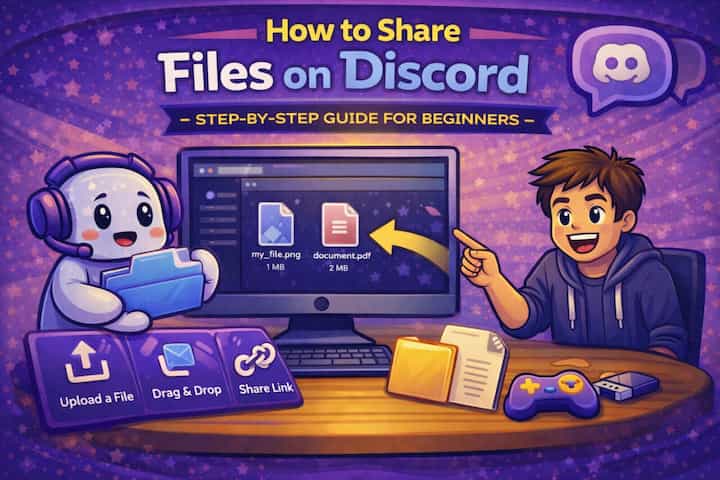
Click the + icon in the message bar, select your file, optionally add a message, and press Enter. You can also drag and drop files directly into any Discord channel or DM window on desktop. Free accounts are limited to 25MB per file. Discord Nitro raises this to 500MB. For files above the limit, upload to Google Drive or Dropbox and share the link directly in chat.
What This Guide Actually Helps You Do
This guide is designed for readers who want to send or manage media without losing quality, storage, speed, or privacy control. It adds value beyond the basic menu path by explaining whether the file should be sent as media, as a document, through a link, or handled with a storage-saving setting. That matters because people often choose the fastest send button and only notice compression, failed uploads, missing previews, or storage problems later.
The practical goal is to leave you with a result you can verify, not just a menu path you followed. It also keeps the limits visible: this guide does not pretend to offer unlimited file size, perfect quality on every connection, or permanent access if the receiver deletes or loses the file. It shows the reliable path, the trade-offs, and the checks that help you avoid repeating the same mistake.
Real Situations Where File Sharing on Discord Actually Matters
Discord file sharing comes up in specific contexts where the method and the format both matter.
You're collaborating on a creative project - design files, audio, video exports, code - and need to share work with teammates or a community. For small files under 25MB this is seamless. For anything larger, knowing the workaround before you hit the limit saves the frustration of a failed upload mid-conversation. The drag-and-drop method is the fastest on desktop, and knowing to send design files as documents (not through the image picker) ensures the recipient gets the original quality rather than a compressed version.
You're in a gaming or content community and people regularly share clips, screenshots, and recordings. Short clips and screenshots typically fall under the 25MB limit. Longer recordings often don't. Many community members share clips this way without thinking about it, then hit the wall when their 45-second video exports at 80MB. The cloud link method - upload to a shareable folder, paste the link - is how most experienced Discord users handle anything video-heavy.
You're running a server where members share resources - PDFs, templates, reference files, assets - and you want them to be accessible without expiring. Discord file links don't expire (as long as the message containing them isn't deleted), which makes Discord channels a reasonable lightweight repository for small files. For a server resource channel, pinning messages with frequently needed files means members can access them without digging through chat history.
Before You Share: One Thing to Know
Discord compresses images uploaded through the standard media/gallery picker but sends files attached as documents without compression. If you're sharing a photo or image where quality matters - a design for review, a detailed screenshot, a photo you want someone to use - use the Document option in the attachment menu rather than the image picker. The recipient gets the original file at full resolution rather than a compressed version. For casual sharing where quality doesn't matter, the difference is negligible. For anything where it does, the document path is always the right choice.
How to Share Files on Discord - Step by Step
Method 1 - Upload via the Plus Button (Desktop)
Step 1 - Click the Plus Icon in the Message Bar
In any text channel or DM, click the + icon at the left of the message input field. A small menu appears with options including Upload a File and other attachment types.
Step 2 - Select Your File
Click Upload a File to open your system's file browser. Navigate to the file you want to send and select it. For images where quality matters, navigate to the file this way rather than using the image attachment shortcut - this sends it as a document without compression.
Step 3 - Add a Message or Context (Optional)
After selecting the file, a preview appears in the message area. You can type a message in the text field above the file preview to give the recipient context - what the file is, what they should do with it, or any relevant notes. This is optional but useful for files that aren't self-explanatory from the filename.
Step 4 - Send
Press Enter or click the send arrow. The file uploads and appears in the chat as a clickable attachment. Recipients can click to view it in Discord or click the download icon to save it to their device.
Method 2 - Drag and Drop (Fastest on Desktop)
Step 5 - Drag a File Directly Into the Chat Window
On desktop, open your file explorer alongside Discord, then click and drag any file from your explorer directly onto the Discord chat window. A drop target overlay appears confirming the file is ready to drop. Release the mouse button and Discord opens the same send confirmation dialog as the plus button method. This is the fastest method for files already open in your file explorer.
Method 3 - Mobile File Sharing
Step 6 - Share Files on the Discord Mobile App
Tap the + icon to the left of the message bar in any channel or DM. On iOS, you'll see options to choose from your camera roll, files app, or take a new photo or video. On Android, you'll see similar options with access to your gallery and file system. Select the file, add a message if needed, and tap send. The same 25MB free / 500MB Nitro limits apply on mobile.
Method 4 - Downloading Files Shared by Others
Step 7 - Download a File From Discord
Click on any file attachment in chat to open it in Discord's built-in viewer (for images, videos, and PDFs). To save it to your device, click the download icon (a downward arrow) that appears when you hover over the attachment on desktop, or tap the download option on mobile. Files are saved to your default downloads location.
What Changes After You Share a File
The file appears in the chat as a permanent attachment linked to that message. Unlike messages which can sometimes be edited, files can't be replaced - if you upload the wrong version, you delete the message and upload again. The file link doesn't expire as long as the message exists. If the message is deleted or the channel is deleted, the file link becomes inaccessible.
Recipients in a server can see all files shared in channels they have access to, and files show up in the channel's media history (accessible through the search icon or the channel's pinned content). For servers used as resource repositories, this creates a searchable archive of everything shared over time.
File downloads from Discord don't require a Discord account - anyone with the direct file link (the CDN URL) can download the file, regardless of whether they're logged into Discord. This is worth knowing for privacy - files shared in public servers are accessible to anyone who has the link, not just server members.
Advanced Tips: Sharing Files More Effectively on Discord
Share cloud storage links instead of uploading for files over 25MB. Google Drive, Dropbox, and OneDrive all generate shareable links that you can paste directly into Discord chat. Set the sharing permission to "Anyone with the link" before pasting. The recipient clicks the link and downloads directly from the cloud service, bypassing Discord's size limit entirely. For video files, this is almost always the right approach - even Nitro's 500MB limit won't accommodate a long recording at reasonable quality.
Use Discord's search to find files shared previously in a channel. Press Ctrl + F (or Cmd + F on Mac) in any channel and filter by "has: file" or "has: image" to search only through messages that contained attachments. This is extremely useful in active channels where a file someone shared weeks ago needs to be found without scrolling through the entire history. You can also filter by file type or the sender's username to narrow results.
Pin important files so they're accessible without searching. Right-click any message containing a file and select Pin Message. Pinned messages are accessible through the pin icon at the top of any channel. For server resource channels, templates, onboarding documents, or frequently referenced files, pinning is the difference between files being genuinely accessible and being effectively lost in chat history after a few days.
Compress files into a ZIP archive to combine multiple files into a single upload under the size limit. If you need to share several related files - a set of assets, multiple documents, a collection of images - zipping them lets you send them as one attachment rather than multiple. On Windows, right-click selected files and choose Send to -> Compressed folder. On Mac, right-click and choose Compress. The resulting ZIP file counts as a single upload against your size limit and keeps related files together for the recipient.
What Discord File Sharing Can't Do
The 25MB free limit is genuinely restrictive for modern file sizes. A single 4K screenshot can exceed 10MB. A 30-second screen recording at decent quality typically runs 50-100MB. Any video content that's more than a few seconds of compressed footage will usually exceed the free limit. Discord Nitro's 500MB limit is much more usable, but it's a paid feature. Without it, cloud links are the practical solution for anything media-heavy.
Discord doesn't provide version history or file organization beyond what the message structure provides. Sharing updated versions of a file means uploading again and potentially losing context about which version is current. For collaborative document work where version control matters, Discord is the wrong tool - Google Drive, Notion, or a dedicated collaboration platform handles this better.
Files shared in Discord channels are also not private to specific users within a channel - everyone in the channel can download anything shared there. Creating private channels with limited role access is the only way to restrict file visibility within a server, which works but requires deliberate setup.
Finally, Discord doesn't scan or preview all file types - executable files (.exe, .bat, .sh) can be shared but may trigger security warnings for recipients, and some file types that could contain malware are blocked entirely. This is a security feature rather than a bug, but it's worth knowing if you're trying to share certain file types in a development or technical community.
Frequently Asked Questions
My file upload keeps failing even though it's under 25MB - what's causing this? The most common causes are an unstable internet connection (file uploads are more sensitive to connection drops than text messages), a file format that Discord's upload system is rejecting (certain executable or script file types are blocked), or a temporary issue with Discord's CDN. Try uploading again on a stable connection. If the same file consistently fails, check Discord's list of blocked file extensions - if your file type is on that list, renaming it or zipping it first is the workaround. If a different file uploads fine but this one keeps failing, the file itself may be the issue.
Can the people I share files with re-share those files outside of Discord? Yes. Any file shared in Discord generates a CDN link that anyone can access if they have the URL, regardless of whether they're logged into Discord. In private servers or DMs, you'd need to share the URL explicitly for it to spread, but there's no technical barrier preventing someone with the link from sharing it. For sensitive files, Discord's public accessibility model means you should treat it the same as any publicly accessible file host - if you wouldn't post it on the web, think twice about sharing it in Discord.
Why do images I share look compressed or lower quality when the recipient views them? Images uploaded through the image/media attachment path get compressed by Discord for faster loading. The compression is most visible on images with fine detail, text, or high contrast edges. To share an image without compression, use the document upload path: click the + icon -> Upload a File -> select the image file. The recipient sees a file attachment rather than an inline image preview, but the file they download is the uncompressed original. For images where quality matters, this is always the correct method.
Do Discord file links expire or stop working after a certain time? No expiration on file links as a time limit - but file links do become inaccessible if the message containing the attachment is deleted, or if the channel it was shared in is deleted. Discord's CDN serves the file from a URL tied to the message ID. No message means no accessible file. If you're archiving important shared files, downloading them locally is safer than relying on the Discord link to remain accessible indefinitely.
I shared a file in the wrong channel - can I move it, or do I have to delete and re-share? Discord doesn't have a native "move message" feature. To fix a file shared in the wrong channel, delete the original message (which removes the attachment from that channel's history) and re-upload the file in the correct location. If you can't delete the original - because you don't have manage messages permission in that channel - ask a moderator to do it, or simply post a correction noting the file was shared in the wrong place and re-share in the right channel.
What To Verify Before You Finish
A good finish looks like this: the receiver can open the file, the quality is acceptable, and the storage or download behavior matches what you intended. Before moving on, do a small real-world test: send one sample file first, confirm the size and preview on the receiving device, and check whether Wi-Fi or mobile data changes the result.
If the upload fails, the file looks compressed, or the receiver cannot open it, the most likely explanation is that the file type, size limit, network quality, device storage, or in-app compression setting is blocking the result. In that case, use the troubleshooting or limitation section above first, because repeating the same taps usually hides the real cause.
Related Guides
Read next: Screen share on Discord | Reduce Discord CPU usage | Delete Discord account
Final Thoughts
For files under 25MB, Discord's file sharing is genuinely one of the most frictionless ways to get something to someone you're already talking to - drag, drop, done. The cloud link approach handles everything above that limit cleanly once you build the habit. And sending images as document uploads rather than through the media picker takes one extra click but delivers meaningfully better quality for anything where it matters.