How to Send Large Files on WhatsApp Without Losing Quality
WhatsApp compresses almost everything you send through it. Photos lose sharpness, videos drop in resolution, and by the time the file reaches the other person it looks noticeably worse than the original. Most people accept this as just how WhatsApp works - but it doesn't have to be. There's a simple method that bypasses compression entirely, and once you know it, you'll use it every time quality matters.
Quick Answer (For Those in a Hurry)
Instead of sending photos or videos through the media picker, send them as documents - tap the attachment icon, select Document, and choose your file. WhatsApp doesn't compress files sent this way, so the recipient gets the original quality. For files too large to send at all, upload to Google Drive or iCloud and share the link directly in the chat.
What This Guide Actually Helps You Do
This guide is designed for readers who want to send or manage media without losing quality, storage, speed, or privacy control. It adds value beyond the basic menu path by explaining whether the file should be sent as media, as a document, through a link, or handled with a storage-saving setting. That matters because people often choose the fastest send button and only notice compression, failed uploads, missing previews, or storage problems later.
The practical goal is to leave you with a result you can verify, not just a menu path you followed. It also keeps the limits visible: this guide does not pretend to offer unlimited file size, perfect quality on every connection, or permanent access if the receiver deletes or loses the file. It shows the reliable path, the trade-offs, and the checks that help you avoid repeating the same mistake.
Real Situations Where This Actually Matters
The quality gap between sending as media versus sending as a document is significant enough that it changes the result in several real scenarios.
You're sending a video to a client or colleague and quality is part of the point. A product demo, a short edit, a recorded presentation - these need to look sharp on the other end. When WhatsApp compresses a video sent through the normal media picker, it can drop the resolution noticeably and introduce artifacts. Sending it as a document delivers the original file, frame-for-frame, exactly as you exported it.
You're sharing a PDF, a contract, or a formatted document and it needs to arrive intact. WhatsApp generally handles documents reasonably well through its native document picker, but the instinct to attach something quickly through the media gallery can cause problems when the file type gets mishandled. Knowing to go directly to the document option every time removes that risk entirely.
You're a photographer, designer, or content creator sending work for review or approval. When someone is reviewing your work, they're making judgments based on what they see. A compressed JPEG that muddies the detail in a photo or flattens the colors in a design can genuinely affect that judgment. Sending the original file as a document means they're evaluating your actual work, not a degraded version of it.
Before You Send: One Thing to Know
WhatsApp has two completely different behaviors depending on how you attach a file. Attaching through the Photos/Videos picker triggers automatic compression - WhatsApp optimizes the file for fast delivery. Attaching through the Document picker sends the file exactly as-is, with no compression and no quality loss. The same video file will look different depending on which path you use.
This is the single most important thing to understand about file sharing on WhatsApp, and it's something most users never figure out because both options look the same in the interface.
How to Send Large Files on WhatsApp - Step by Step
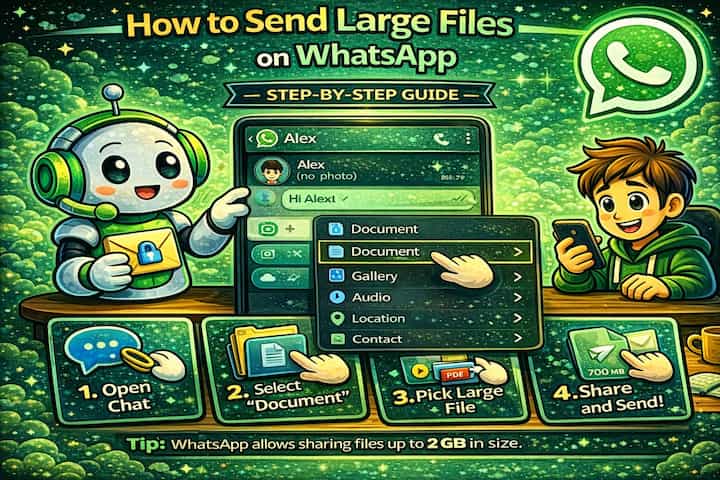
Step 1 - Open the Chat and Tap the Attachment Icon
Open the conversation you want to send the file to and tap the paperclip icon (Android) or the + button (iPhone) to open the attachment menu.
Step 2 - Select Document Instead of Gallery
In the attachment menu, tap Document rather than Gallery, Photos, or Videos. This is the key step. Choosing Document routes the file through WhatsApp's uncompressed sending path.
Step 3 - Navigate to Your File and Select It
Your phone's file browser will open. Navigate to the file you want to send - whether it's a video, a photo, a PDF, or any other format - and tap it to select it.
Step 4 - Send and Confirm Receipt
Tap Send. The file will upload at its original size and quality. Depending on the file size and your connection speed, this may take longer than a normal media send - that's expected, and it means it's working correctly.
What Changes When You Send as a Document
When a file goes out as a document, the recipient sees it differently in the chat. Instead of a media preview that plays or displays inline, they'll see a file attachment with the filename and size displayed. They tap it to download, and what they receive is the original file - same resolution, same format, same file size as what you sent.
On your end, the upload takes longer than compressed media because the full file is being transferred rather than a reduced version. That's the trade-off, and for most quality-sensitive situations it's completely worth it. The recipient can open the file in any compatible app on their device, which also means videos sent this way can be opened in a video player that handles the full resolution properly.
Advanced Tips: Going Beyond the Basics
The document method handles most situations, but there are a few additional techniques for edge cases and larger files.
Use Google Drive or iCloud to send files that exceed WhatsApp's size limit. WhatsApp caps file transfers at 2GB, and even well below that limit large uploads can fail on unstable connections. For anything substantial - a long video, a large project folder, a batch of high-res photos - upload to Google Drive or iCloud first, then paste the sharing link directly into the WhatsApp chat. The recipient gets a reliable download link with no size constraint and no WhatsApp compression involved at any point.
Zip multiple files before sending to keep them together. WhatsApp's document picker sends one file at a time. If you need to send a collection of files - multiple photos, a set of assets, a folder of documents - compress them into a single ZIP file first, then send that as a document. The recipient unzips on their end and gets everything organized exactly as you packaged it, with no quality loss on any of the individual files inside.
Check the file size before sending to avoid failed uploads. Files close to or above the 2GB limit will fail or take extremely long to upload on mobile data. Before attaching a large file, check its size in your file browser. If it's over 500MB and you're not on Wi-Fi, either wait for a better connection or use the cloud link method instead. A failed upload wastes time and doesn't send anything.
Send voice memos and audio files as documents to preserve quality. This is less obvious but equally important for audio. Voice recordings and music files sent through WhatsApp's native audio picker get compressed just like video. If you're sending a voice memo for transcription, a music demo, or any audio where fidelity matters, attach it as a document instead. The recipient gets the original audio file, not a compressed version.
Why There Are Still Limits Even With the Right Method
The document method removes compression, but it doesn't remove size limits. WhatsApp's 2GB cap applies regardless of how you send the file, and in practice the real-world limit is often lower because large uploads are sensitive to connection quality. A file that uploads fine on fast Wi-Fi might fail repeatedly on mobile data - not because of a hard limit, but because the connection drops partway through.
There's also a recipient-side consideration. Sending an uncompressed 1GB video to someone on a limited mobile data plan means they're downloading 1GB to view it. The cloud link approach handles this more gracefully because the recipient can choose when and where to download, and can preview before committing to the full download.
WhatsApp also doesn't support folder sharing - only individual files or ZIPs. And while the document method works for virtually any file type, some very old or obscure formats may not be recognizable by the recipient's device, which is a downstream issue unrelated to WhatsApp itself.
Frequently Asked Questions
Why does a video I sent as a document still look compressed on the receiver's end? If the video looks degraded after being received, the issue is more likely with the player the recipient is using rather than with the file itself. Ask them to download the file and open it in a dedicated video player (VLC, for example) rather than playing it directly within WhatsApp. WhatsApp's in-app player sometimes struggles with high-resolution or high-bitrate files - the underlying file is intact, the playback just isn't showing it at full quality.
Does the document method work for photos, or only for videos and PDFs? It works for any file type, including photos. A JPEG or PNG sent as a document arrives at its original resolution with no compression applied. The trade-off is that the recipient sees a file attachment rather than an inline photo preview - they need to tap to download and then open it in a photo viewer. For quality-critical photos, that's a worthwhile trade.
Is there a way to send files larger than 2GB through WhatsApp? Not directly - 2GB is WhatsApp's hard cap for file transfers. For anything larger, the cloud link method is the only practical option. Upload to Google Drive, Dropbox, or a similar service, set the sharing permissions to "anyone with the link," and paste the link into WhatsApp. There's no size limit on the link itself, and the recipient downloads directly from the cloud service.
Will the recipient need a special app to open a file sent as a document? No more than they would for any other file. WhatsApp delivers the file to their device, and their phone handles opening it with whatever compatible app is installed. A PDF opens in a PDF reader, a video opens in a video player, a ZIP opens in a file manager. The only scenario where this becomes a minor friction point is an unusual file format that their device doesn't have a default app for.
Does sending as a document affect end-to-end encryption? No. WhatsApp encrypts all content end-to-end regardless of how it's sent - media, documents, messages, calls. Sending a file as a document doesn't change its encryption status. The privacy and security protections are identical.
What To Verify Before You Finish
A good finish looks like this: the receiver can open the file, the quality is acceptable, and the storage or download behavior matches what you intended. Before moving on, do a small real-world test: send one sample file first, confirm the size and preview on the receiving device, and check whether Wi-Fi or mobile data changes the result.
If the upload fails, the file looks compressed, or the receiver cannot open it, the most likely explanation is that the file type, size limit, network quality, device storage, or in-app compression setting is blocking the result. In that case, use the troubleshooting or limitation section above first, because repeating the same taps usually hides the real cause.
Related Guides
Read next: Schedule messages on WhatsApp | Know if someone blocked you on WhatsApp | Send disappearing messages on WhatsApp
Final Thoughts
The gap between "sent as media" and "sent as document" is one of those things that seems minor until you see the difference in practice. Once you've sent an important video the right way and had someone confirm they received it in full quality, you stop using the media picker for anything that matters. Two extra taps to select Document instead of Gallery - that's the whole fix.