How to Schedule Messages on WhatsApp (Methods That Actually Work)
WhatsApp doesn't have a built-in scheduling feature - and most articles either stop there or point you toward sketchy third-party apps that require access to your messages and rarely work reliably. The real answer is more practical than either of those options. There are legitimate methods that get you the same result, and once you know which ones actually hold up in daily use, the absence of a native scheduler stops feeling like a limitation.
Quick Answer (For Those in a Hurry)
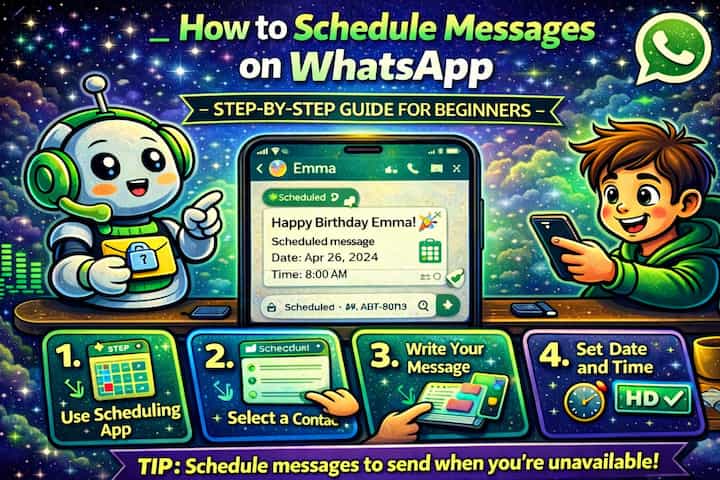
WhatsApp has no native scheduling, but Android users can use the SKEDit app or Google Assistant routines to schedule messages with reasonable reliability. On iPhone, the closest option is setting a reminder that fires at the right moment, with your message already drafted and ready to send in one tap. For businesses, WhatsApp Business has a built-in Away Message feature that automates responses during set hours.
What This Guide Actually Helps You Do
This guide is designed for readers who want to control message timing, visibility, editing, or notifications with fewer surprises. It adds value beyond the basic menu path by explaining whether the feature changes the message itself, the delivery timing, the visible history, or only your local notification experience. That matters because users often assume message tools work the same in private chats, groups, linked devices, and desktop apps, but the details can differ.
The practical goal is to leave you with a result you can verify, not just a menu path you followed. It also keeps the limits visible: this guide does not pretend to offer silent changes that nobody can notice, guaranteed delivery in every case, or automation that ignores app limits. It shows the reliable path, the trade-offs, and the checks that help you avoid repeating the same mistake.
Real Situations Where Scheduling Actually Changes Things
This isn't a feature request for the sake of it - there are specific situations where not being able to schedule a WhatsApp message creates a real problem.
You want to send a birthday or anniversary message at exactly the right moment, but you know you'll be busy or asleep. Remembering to send something isn't the issue - timing is. A birthday message at 11pm the night before or noon the day after lands differently than one that arrives first thing in the morning. Without scheduling, you're either setting an alarm to send it manually or hoping you remember at the right moment.
You work across time zones and want your messages to land during the recipient's working hours. Sending a message to a client or colleague in Tokyo at 9am your time means it arrives at midnight theirs. Even if they don't respond until morning, the notification still disrupts their night. Scheduling for their morning - without having to be awake at 3am yourself - is genuinely useful and signals that you're thinking about their schedule, not just your own.
You're preparing for a busy day and want to send follow-ups, reminders, or check-ins at specific intervals without stopping what you're doing. Batch-writing messages in the morning and having them go out at staggered times throughout the day is a legitimate productivity approach. It keeps communication flowing without constant interruptions, and it means you're composing when your thinking is clear rather than reactively between tasks.
Before You Try Any Method: One Thing to Know
No third-party app can schedule WhatsApp messages without requiring some level of system access - either to your notifications, your accessibility settings, or WhatsApp itself. This is because WhatsApp doesn't expose a scheduling API. Any app that claims to schedule messages is essentially automating taps on your screen or intercepting notifications, which means it needs deeper permissions than a typical app. Evaluate that trade-off carefully before granting access.
This doesn't mean all scheduling tools are dangerous - it means you should use established ones with a real track record rather than random apps with five reviews and a lot of promises.
How to Schedule WhatsApp Messages - Method by Method
Method 1 - SKEDit (Android, Most Reliable Automated Option)
SKEDit is the most consistently recommended scheduling app for WhatsApp on Android. It works by using WhatsApp's accessibility service to send messages automatically at your chosen time - no root required, no shady permissions beyond what the automation actually needs.

Step 1 - Download and open SKEDit. Search for "SKEDit" in the Google Play Store, install it, and open the app. It will walk you through a short onboarding the first time.
Step 2 - Grant the accessibility permission. SKEDit will ask you to enable an accessibility service so it can automate taps inside WhatsApp. Go to your phone's Settings -> Accessibility -> Installed Services -> SKEDit and toggle it on. This is what allows the app to open WhatsApp and press Send on your behalf at the scheduled time.
Step 3 - Tap the WhatsApp icon inside SKEDit. From SKEDit's home screen, select WhatsApp as your messaging platform.
Step 4 - Choose your contact. Tap the contact field and select the person you want to message. The contact must already be saved in your WhatsApp contact list.
Step 5 - Type your message. Write the message exactly as you want it to appear. You can include emoji, line breaks, or formatting - it will be sent as-is.
Step 6 - Set the date and time. Tap the date and time fields and choose exactly when you want the message to go out. You can also set it to repeat daily, weekly, or on specific days if it's a recurring message.
Step 7 - Confirm and schedule. Tap Schedule. SKEDit will show the message in your scheduled queue. At the set time, your phone will briefly open WhatsApp, send the message, and return to whatever you were doing - all automatically.
Important: Your phone must be on, unlocked (or at minimum, not in deep sleep), and connected to the internet at the scheduled time. SKEDit automates your device - it doesn't send from a server. If your phone is off or the screen is blocking the automation, the message won't go out.
Method 2 - Google Assistant Routines (Android, Semi-Automated)
Google Assistant can send a WhatsApp message as part of a scheduled routine, using nothing but Google's own ecosystem - no third-party app required beyond what's already on your phone.

Step 1 - Open the Google Home app. If you don't have it, download it from the Play Store. Sign in with the same Google account linked to your phone.
Step 2 - Go to Routines. In the Google Home app, tap the menu and select Routines, then tap the + button to create a new one.
Step 3 - Set a time trigger. Under "When should this routine start?", select At a specific time. Choose your date and time. You can also set it to repeat on certain days of the week for recurring messages.
Step 4 - Add a WhatsApp action. Under "What do you want the routine to do?", tap Add an action, then search for or select Send a WhatsApp message. Type in the contact name exactly as it appears in your phone's contacts.
Step 5 - Write your message. Type the message text you want sent. Keep it straightforward - Google Assistant handles plain text well but may struggle with complex formatting or special characters.
Step 6 - Save the routine. Tap Save. At the scheduled time, Google Assistant will execute the routine and send the message through WhatsApp automatically.
Note: Google Assistant needs permission to access WhatsApp messaging. If it asks to connect to WhatsApp during setup, grant the permission. Also ensure your phone's battery optimization settings aren't killing Google Assistant in the background before the routine fires.
Method 3 - iPhone Reminder + Drafted Message (iOS, Manual but Reliable)
iOS doesn't allow third-party apps to send WhatsApp messages in the background without user interaction, so true automation isn't possible without jumping through significant hoops. The most practical iPhone method is a two-step system that takes ten seconds to execute when the reminder fires.
Step 1 - Open the WhatsApp chat and draft your message. Open the conversation with the person you want to message and type your message in the text field. Do not send it. WhatsApp automatically saves unsent drafts - when you come back to the chat, the message will still be there, and the chat will be marked "Draft" in your contact list.
Step 2 - Open the Reminders app. On iPhone, open the native Reminders app and tap the + button to create a new reminder.
Step 3 - Set the date and time. Name the reminder something that identifies the message (for example, "Send birthday message to Sarah") and enable the Date toggle. Set it for the exact time you want to send the message.
Step 4 - Add a URL to open WhatsApp directly (optional but useful). Tap the reminder to expand it, then tap URL and enter https://wa.me/ followed by the contact's full international phone number (example: https://wa.me/12025550123). When the reminder fires and you tap it, it will open that contact's WhatsApp chat directly - no navigation required.
Step 5 - When the reminder fires, tap to open WhatsApp and hit Send. Your drafted message is waiting. One tap sends it. The whole process from reminder to sent message takes about three seconds.
Method 4 - WhatsApp Business Away Messages (Automated Responses During Set Hours)
If you're using WhatsApp Business, the Away Message feature gives you genuine built-in automation - no third-party tools, no permissions workarounds. It's designed for a specific use case (auto-responding when you're unavailable), but it handles that case cleanly and reliably.
Step 1 - Open WhatsApp Business and go to Settings. Tap the three dots in the top-right corner and select Settings.
Step 2 - Go to Business Tools. Inside Settings, tap Business Tools to access all the automation features WhatsApp Business offers.
Step 3 - Tap Away Message. Select Away Message from the list of business tools.
Step 4 - Toggle on "Send Away Message". Flip the toggle to enable it.
Step 5 - Write your message. Tap the message field and write the automated response you want to send. This message will go out automatically to anyone who contacts you during the hours you set. Keep it clear and useful - let them know when they can expect a real response.
Step 6 - Set the schedule. Tap Schedule and choose when the Away Message should activate. You can set it to Always, Custom Schedule (specific hours on specific days), or Outside of Business Hours if you've set business hours in your profile.
Step 7 - Choose who receives it. Tap Send to and choose between Everyone, Everyone not in address book, Everyone except..., or Only send to.... For most business uses, Everyone not in address book keeps automated responses from going to people you know personally.
Step 8 - Save the settings. Tap Save. WhatsApp Business will now automatically send the away message to incoming contacts during your set hours, with no action required on your part.
What Changes When You Use These Methods
The practical shift is less about the technology and more about how you approach communication. Instead of sending messages reactively - when something comes to mind, regardless of timing - you start composing with intent and separating the writing from the sending. The message gets the attention it deserves when you're focused, and it reaches the person at a time that actually makes sense for them.
For cross-timezone communication specifically, this changes the dynamic of how you're perceived. Messages that arrive at considerate hours signal awareness, even when the recipient knows intellectually that you're in a different time zone. The small details of timing do register, even if subconsciously.
The limitation of every current method is that your phone needs to be on and connected. None of these approaches send from a server - they automate your device. If your phone dies or loses connection before the scheduled time, the message doesn't go out.
Advanced Tips: Getting More Out of Scheduling
Beyond the basic methods, there are a few approaches that experienced users rely on to build a more reliable system.
Draft messages in WhatsApp's own text field as a temporary holding area. WhatsApp saves unsent drafts automatically - if you type a message and leave the chat without sending, the draft is still there marked with a "Draft" label when you return. For messages you're planning to send at a specific moment, this means the composition is already done and the chat is queued visually in your list. It's a low-tech but effective way to prepare multiple messages for the same day.
Use your phone's native reminder system with a direct WhatsApp deep link. On Android, you can create a reminder that opens a specific WhatsApp conversation directly when it fires. Use a reminder app that supports URL actions, and link to https://wa.me/[phone number] as the action. When the reminder fires, one tap takes you directly to that conversation with no navigation required. Your drafted message is already there waiting.
Batch-schedule for the week during one focused session. Rather than scheduling messages individually as they come up, set aside time once a week to write and schedule everything in advance - birthday messages, follow-ups, check-ins. This approach works well with SKEDit on Android, where you can queue multiple messages for different times and contacts in a single session. It separates the creative work of writing from the logistics of sending.
For recurring messages, use WhatsApp Business broadcast lists with scheduled reminders. If you regularly send the same type of message to a group of contacts - a weekly update, a recurring reminder, a regular check-in - WhatsApp Business broadcast lists let you message multiple contacts at once as individual conversations (not a group). Pair this with a recurring reminder to send, and you have a lightweight but effective scheduled broadcast system without automation tools.
Why Full Automation Has Real Downsides
It's worth being direct about why WhatsApp doesn't offer native scheduling and why that's not entirely a bad thing. Automated messages at scale are how spam happens. A feature that lets any user send unlimited scheduled messages to any number of contacts would be immediately exploited, which is why WhatsApp keeps automation tightly controlled.
On an individual level, automated messages also carry a different texture than ones sent in the moment. If a recipient knows you use scheduling tools, a message that arrives at a suspiciously optimal time can feel manufactured rather than genuine. This matters more in personal contexts than professional ones, but it's worth being aware of.
There's also the reliability issue. Every current scheduling method for WhatsApp depends on your device being active. It's not a set-and-forget system the way email scheduling is. A dead battery, a lost connection, or a phone restart at the wrong moment means the message doesn't send and you may not realize it until later.
Frequently Asked Questions
Does scheduling a message through SKEDit or Google Assistant affect WhatsApp's end-to-end encryption? No. The message is still sent through WhatsApp's normal infrastructure and remains end-to-end encrypted. SKEDit and similar tools automate the sending action on your device - they don't intercept or reroute the message itself. The encryption happens at the WhatsApp layer regardless of how the send was triggered.
What happens if the recipient's number is saved differently or the contact is in a group - can I still schedule to them? SKEDit works based on the contact name as it appears in your WhatsApp contact list. As long as the contact is saved and accessible in WhatsApp, scheduling to them works the same as scheduling to any other contact. Group scheduling is more limited - most tools support individual contacts more reliably than group chats.
If a scheduled message fails to send, will I know? SKEDit will show a failed status in its message log if the send didn't complete. Google Assistant routines don't always surface failures as clearly - you may need to manually check the WhatsApp chat to confirm delivery. For time-sensitive messages, it's worth building a habit of checking after the scheduled time rather than assuming it went through.
Can I schedule WhatsApp messages on iPhone without third-party apps? Not with true automation - iOS's sandboxing prevents apps from sending WhatsApp messages in the background without user interaction. The reminder-plus-draft method is the practical iOS alternative. Some apps claim to offer iOS scheduling via integrations or workarounds, but none are as seamless or reliable as the Android options.
Does WhatsApp Business scheduling work for regular personal accounts? No. The Away Message and greeting message features in WhatsApp Business are only available on the Business version of the app. They're also designed for automated responses to incoming messages, not for scheduling outbound messages to specific contacts at specific times. If you need scheduling for personal use, the methods above are the right path.
What To Verify Before You Finish
A good finish looks like this: the message or notification behaves as expected in the exact chat type where you plan to use it. Before moving on, do a small real-world test: run a harmless test message or notification change in the same type of chat before using it for something important.
If the timing, edit, pin, or notification does not behave as expected, the most likely explanation is that the chat type, device state, recipient settings, app version, or notification permissions are changing how the feature works. In that case, use the troubleshooting or limitation section above first, because repeating the same taps usually hides the real cause.
Related Guides
Read next: Send disappearing messages on WhatsApp | Delete WhatsApp messages for everyone | Recover deleted messages on WhatsApp
Final Thoughts
WhatsApp scheduling is one of those things that's genuinely useful once you set it up, but the path to getting there is messier than it should be. The best approach depends on your platform and how much automation you're comfortable with. For most people, the SKEDit method on Android or the reminder-plus-draft method on iPhone covers the real use cases well enough. Start there, see if it fits your workflow, and adjust from there.