How to Restore WhatsApp Backup on a New Phone (And What to Do If It Goes Wrong)
Switching phones is exciting right up until you realize you haven't thought about WhatsApp. Your messages, photos, voice notes, years of conversations - all of it lives on your old device, and getting it to the new one requires a specific sequence of steps done in a specific order. Skip one, do them in the wrong order, or use the wrong account, and the window to restore closes without warning.
Here's exactly how the process works, what to do when it doesn't, and how to avoid the mistakes that most people only make once.
Quick Answer (For Those in a Hurry)
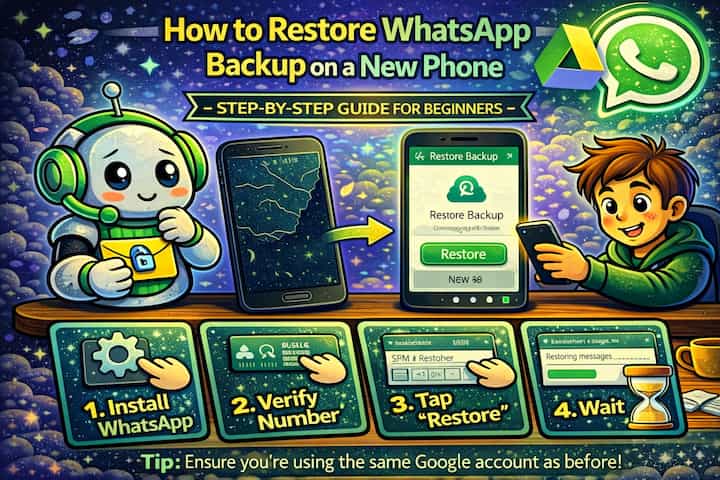
Install WhatsApp on your new phone, open it, enter the same phone number linked to your old account, and verify it. WhatsApp will automatically detect your Google Drive backup and prompt you to restore - tap Restore and wait. The restore must happen during this initial setup screen. If you skip it, you'll need to reinstall the app to get that prompt back.
What This Guide Actually Helps You Do
This guide is designed for readers who want to recover or move important conversations only when the app gives you a reliable path to do it. It adds value beyond the basic menu path by explaining whether the backup or transfer method matches your phone number, cloud account, device type, and timing. That matters because people often reinstall the app or reset a phone before checking whether the backup is recent enough and linked to the right account.
The practical goal is to leave you with a result you can verify, not just a menu path you followed. It also keeps the limits visible: this guide does not pretend to offer recovering encrypted messages that were never backed up or accessing someone else's private data. It shows the reliable path, the trade-offs, and the checks that help you avoid repeating the same mistake.
Real Situations Where This Actually Matters
The restore process is straightforward when everything goes right. It becomes critical - and stressful - in three specific scenarios.
You're upgrading to a new phone and want to pick up exactly where you left off. This is the most common case, and the one with the most margin for error. People are excited to set up a new device, move quickly, and tap through setup prompts without reading them carefully. The restore prompt appears once, in a specific window during WhatsApp's first-launch setup, and if you tap "Skip" or "Later" thinking you can do it afterward, you've closed that window. Everything from that point forward starts fresh.
Your old phone was lost, stolen, or broken before you could manually back it up. This is when the difference between daily automatic backups and infrequent ones becomes painfully clear. If your last backup was yesterday, you lose a day of messages. If your last backup was three weeks ago - or you didn't realize backup was turned off - you're restoring to a three-week-old version of your chat history, and everything since then is gone. The restore process itself is the same, but the outcome depends entirely on what backup exists.
You've done a factory reset and are reinstalling WhatsApp on the same device. Factory resets are often done impulsively, in the middle of troubleshooting, without thinking through every app. WhatsApp treats a factory reset the same as a brand new phone - you go through setup from scratch, and the restore prompt appears in the same place. The good news is that if your last automatic backup ran recently, the gap is small. The bad news is that if backup was never properly configured, a factory reset effectively deletes everything.
Before You Start: One Thing to Know
The restore prompt only appears once, during WhatsApp's initial setup - and you must be signed into the correct Google account on your new phone before you start. WhatsApp looks for a backup tied to both your phone number and your Google account simultaneously. If the Google account on your new phone is different from the one used for backup, WhatsApp won't find anything. Sign into the correct Google account in your phone's settings before you open WhatsApp for the first time on the new device.
This single preparation step prevents the most common restore failure.
How to Restore Your WhatsApp Backup - Step by Step
Step 1 - Install WhatsApp on Your New Phone
Download WhatsApp from the Google Play Store and install it. Use only the official app - don't transfer the APK from your old phone, as this can cause version conflicts.
Step 2 - Open the App and Begin Setup
Launch WhatsApp. Agree to the terms of service and tap Continue to begin the setup process.
Step 3 - Enter Your Phone Number
Enter the same phone number that was linked to your WhatsApp account on your old phone. This must match exactly - including the country code. WhatsApp uses this number to locate your associated backup.
Step 4 - Verify Your Number
WhatsApp will send a 6-digit verification code by SMS to that number. Enter it to confirm your identity. On some devices and carriers, WhatsApp detects the code automatically without you needing to type it.
Step 5 - Wait for WhatsApp to Detect Your Backup
After verification, WhatsApp automatically searches your connected Google account for an existing backup. This takes a few seconds. You'll see a screen indicating it's checking for backups.
If a backup is found, the screen will display the backup date and size. If nothing appears, see the Advanced Tips section below for troubleshooting.
Step 6 - Tap Restore
When prompted, tap Restore to begin downloading your backup from Google Drive. Do not skip this step - if you tap "Skip" here, WhatsApp will complete setup without your chat history, and you'll need to reinstall to get this prompt again.
Step 7 - Wait for Chat Restoration
Your messages will restore first. The progress bar will fill as each conversation is rebuilt. Depending on the number of messages and your connection speed, this can take anywhere from seconds to several minutes.
Step 8 - Media Continues Restoring in the Background
Once your messages are restored, WhatsApp will let you start using the app immediately while photos, videos, and voice notes continue downloading in the background. You'll see a notification or progress indicator while this completes.

Stay connected to Wi-Fi until the process finishes - disconnecting mid-restore can leave some media files incomplete.
What Changes After You Restore
Once restoration completes, your new phone looks and feels exactly like your old one from a WhatsApp perspective. Every conversation, every chat group, every contact's message history is back - up to the moment of the last backup. Your chats are indexed and searchable, media is re-downloaded and available in your gallery, and your message history is continuous.
The experience on the other person's end is completely unchanged - they have no visibility into your device setup or restore process. Your messages that were already delivered to their device were never affected by your phone situation in the first place.
One thing that doesn't transfer: messages received between your last backup and the moment you lost or reset your old phone. That gap - whether it's an hour or three weeks - is permanent. The restore brings you back to the backup's timestamp, not to the moment you made the switch.
Advanced Tips: When the Standard Process Doesn't Go Smoothly
Most restores complete without incident. These four situations cover the cases where they don't.
If WhatsApp doesn't detect a backup, check which Google account is active on the device. The single most common reason for a missed backup is a Google account mismatch. Go to your phone's Settings -> Accounts and verify that the Google account shown there matches the one used for backup on your old phone. If it's different, add the correct account in your phone's settings, then go back to WhatsApp, tap Try Again or reinstall the app and start setup again. The backup detection happens at the moment of setup - it checks whatever Google account is active at that point.
If the backup is detected but the restore fails partway through, try switching to a stronger Wi-Fi connection. Large backups - especially those including years of media - can fail on unstable connections. If the restore stops with an error, don't panic. Reinstall WhatsApp, go through setup again, and when the restore prompt appears, make sure you're on a reliable Wi-Fi connection before tapping Restore. The process picks up from where it left off in some cases, though not always.
If you accidentally skipped the restore, reinstall WhatsApp immediately - don't wait. If you tapped through setup without restoring, WhatsApp has initialized your account fresh on the new device. The backup on Google Drive is still there and untouched - but each day you wait risks it being overwritten by a new backup from your now-empty chat history. Reinstall the app right away, go through setup again, and when the restore prompt appears this time, tap Restore before doing anything else.
For very large backups, trigger the restore over Wi-Fi before you need to use the phone. If your backup is several gigabytes - years of messages and media - the restore can take 30 minutes or more on a good connection. Don't start the process right before you need the phone for something. Set it up when you have time to let it run completely, ideally overnight or during a period when you don't need WhatsApp. The app is usable once messages restore, but media continues downloading in the background and the phone should stay connected throughout.
What the Restore Process Can't Do
The restore brings back everything that was in your backup - and nothing more. If media files were excluded from your backup settings, they won't reappear. If certain chats were manually deleted before the backup ran, those are gone. The backup is a snapshot, not a complete archive of every message ever sent.
The restore also can't bridge the gap between platforms. A WhatsApp backup made on Android using Google Drive cannot be restored on an iPhone, and vice versa. If you're switching from Android to iPhone or the other direction, you'll need to use WhatsApp's dedicated cross-platform transfer tool during device setup - the standard restore process described here won't work for platform changes.
There's also a timing reality worth being clear about: the newer your phone is and the older your backup is, the more you'll lose. A backup from three weeks ago means three weeks of conversations that won't come back. This is the strongest argument for keeping automatic daily backups enabled and verified - not because the restore process is complicated, but because what you can restore depends entirely on how recent your last backup was.
Frequently Asked Questions
I completed setup before restoring - is my backup gone, or can I still access it? Your backup on Google Drive is still there and untouched - WhatsApp doesn't delete it when you skip the restore. What's been created is a new, empty WhatsApp installation on your device. Reinstall the app immediately, go through setup again with the same number and Google account, and when the restore prompt appears, tap Restore. Do this before using WhatsApp at all on the new device - any messages sent or received will be captured in the next automatic backup, which could eventually overwrite your old one.
Why does WhatsApp show a backup exists but from months ago, even though I thought I had daily backup enabled? This usually means daily backup was configured but wasn't actually running successfully. Common causes: your Google Drive ran out of storage space and silently stopped accepting new backups, the backup schedule requires your phone to be charging and on Wi-Fi at the trigger time and those conditions weren't being met, or the Google account authorization expired. Go to your old phone's Chat Backup settings and check the "Last Backup" timestamp - if it's old, that confirms the issue. For the restore, you'll get the most recent successful backup, which may be older than expected.
If I restore from a backup, will my WhatsApp on my old phone stop working? No immediately, but WhatsApp only supports one active device per phone number (outside of the Linked Devices feature). Once you verify your number on the new phone, your old phone's WhatsApp session is automatically logged out. You can't run the same WhatsApp account actively on two phones simultaneously - the new phone takes over the primary session.
Does the restore include my WhatsApp group memberships and settings? Yes. Your group memberships, group names, group descriptions, and your personal settings within groups are all part of the backup and restore. What isn't restored is your admin status in groups - that's a server-side setting managed by WhatsApp, so you'll still appear as an admin in groups where you were one. The chat history for all group conversations restores along with individual chats.
What happens to the messages the other person sent me while I was switching phones? Messages sent to your number while WhatsApp was inactive on your old phone (after it logged out) were held by WhatsApp's servers for delivery. Once you complete setup on your new phone and WhatsApp connects, those pending messages are delivered normally - they appear at the bottom of the relevant conversations. They aren't part of the backup restore; they come through the normal message delivery system once your account is active again.
What To Verify Before You Finish
A good finish looks like this: you know exactly which backup or transfer source will be used and what newer messages could be missing afterward. Before moving on, do a small real-world test: check the backup date, account name, phone number, available storage, and internet connection before uninstalling or moving anything.
If the restore prompt does not appear or the transferred history is incomplete, the most likely explanation is that the phone number, Google account, Apple ID, device pair, storage permission, or backup location does not match the original setup. In that case, use the troubleshooting or limitation section above first, because repeating the same taps usually hides the real cause.
Related Guides
Read next: Backup WhatsApp chats to Google Drive | Transfer WhatsApp chats from Android to iPhone | Use WhatsApp on two phones
Final Thoughts
The restore process itself is simple - the difficulty is knowing the one rule that matters: it has to happen during setup, with the right Google account already active on the device, before you tap through the prompts. Get those two things right and everything else follows naturally. Get them wrong and you're reinstalling the app and hoping the backup is still there. Take thirty seconds to verify your Google account before you open WhatsApp on a new phone. That's the whole trick.