How to Use WhatsApp on Two Phones at the Same Time (The Right Way)
For years, the only way to use WhatsApp on a second phone was to log out of the first one - which defeated the entire purpose. That changed when WhatsApp rolled out its multi-device system, which lets you run the same account on multiple phones simultaneously without them interfering with each other. The feature works well, but the setup has one step that trips almost everyone up the first time: you don't log in on the second phone the usual way.
Here's how to do it correctly, what to expect once both phones are linked, and what the system still can't do.
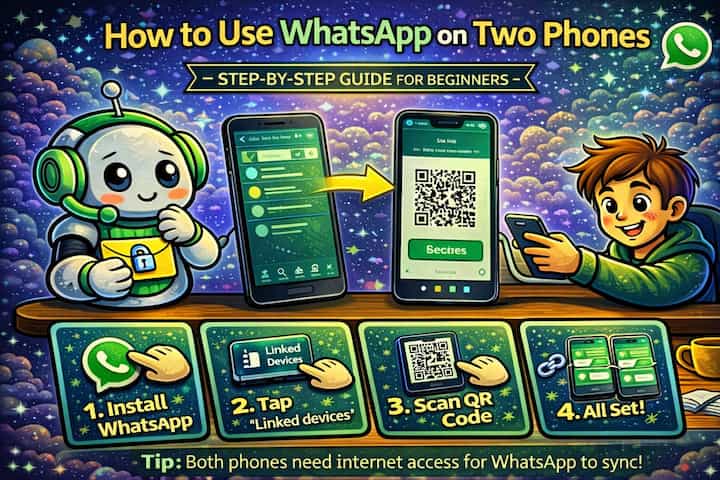
Quick Answer (For Those in a Hurry)
On your main phone, go to WhatsApp -> Settings -> Linked Devices -> Link a Device. On your second phone, install WhatsApp, open it, and instead of entering your phone number, select Link as Companion Device - this generates a QR code. Scan that QR code using your main phone, and both devices will sync. Messages from that point forward appear on both phones in real time.
What This Guide Actually Helps You Do
This guide is designed for readers who want to recover or move important conversations only when the app gives you a reliable path to do it. It adds value beyond the basic menu path by explaining whether the backup or transfer method matches your phone number, cloud account, device type, and timing. That matters because people often reinstall the app or reset a phone before checking whether the backup is recent enough and linked to the right account.
The practical goal is to leave you with a result you can verify, not just a menu path you followed. It also keeps the limits visible: this guide does not pretend to offer recovering encrypted messages that were never backed up or accessing someone else's private data. It shows the reliable path, the trade-offs, and the checks that help you avoid repeating the same mistake.
Real Situations Where Two Phones Actually Makes Sense
This isn't a feature most people need - but for those who do, it solves a genuinely specific problem.
You carry a personal phone and a work phone and want WhatsApp accessible on both without constantly switching. The alternative - picking up whichever phone has WhatsApp and transferring it when you switch - is a friction point that adds up over a day. With both phones linked, WhatsApp is wherever you are, and whichever device is in your hand can handle it. Replies, incoming messages, notifications - all of it works on either phone without you having to think about which one has the app active.
You want to keep your personal number active on WhatsApp while using a second phone as a primary device for a period. Travel, repairs, temporary setups - there are situations where you're primarily using a device that isn't your main phone, but you don't want to lose access to your regular WhatsApp. Linking the second phone as a companion device means your account follows you without disrupting your primary setup.
You share a household where one person occasionally needs access to your WhatsApp conversations - a partner managing shared logistics, for example. This is a narrower use case, but it's real. Event planning, travel coordination, shared family or business threads - there are situations where two people genuinely need read and send access to the same WhatsApp account from different physical devices. The linked device system makes this possible without password sharing or account transfers.
Before You Start: One Thing to Know
On the second phone, do not enter your phone number when WhatsApp opens - that will log out your main phone and transfer the account rather than linking it. The step most people miss is selecting "Link as Companion Device" or "Link a Device" before the phone number entry screen. This is the fork in the road between linking a companion device and replacing your primary device. Take the companion device path every time you're adding a second phone.
Both phones should be connected to the internet throughout setup. The QR scan links the devices, but the initial sync that follows requires a stable connection on both ends.
How to Link WhatsApp on a Second Phone - Step by Step
Step 1 - Open WhatsApp on Your Main Phone
Open WhatsApp on your primary device - the phone where your WhatsApp account is already active.
Step 2 - Go to Linked Devices
Tap the three dots in the top-right corner and select Linked Devices. This is the section that manages all companion devices connected to your account.
Step 3 - Tap Link a Device
Tap Link a Device. Your main phone will activate its camera to scan a QR code. Keep this screen open and set your main phone aside - you'll use it in a moment.
Step 4 - Install WhatsApp on Your Second Phone
On your second phone, download and install WhatsApp from the Google Play Store or App Store if it isn't already installed. Open the app.
Step 5 - Select "Link as Companion Device"
This is the critical step. When WhatsApp opens on your second phone, look for the option that says Link as Companion Device, Link a Device, or a similar phrasing - it's usually displayed as a small link below the phone number entry field or on the welcome screen. Tap it. Do not enter your phone number.
Step 6 - Scan the QR Code
Your second phone will display a QR code. Pick up your main phone (which should still be showing the QR scanner from Step 3) and point its camera at the QR code on your second phone's screen.
Step 7 - Wait for Synchronization
Once the QR code is scanned, the devices connect and your chat history begins syncing to the second phone. This takes a few seconds to a few minutes depending on how many conversations you have.
Step 8 - Both Phones Are Now Active
Once sync completes, WhatsApp is fully functional on both phones. You can send and receive messages from either device - incoming messages appear on both, and replies from either phone are visible on both.
What Changes Once Both Phones Are Linked
The day-to-day experience on both phones is nearly identical. Messages arrive on both simultaneously, read status syncs between them (if read receipts are enabled), and conversations you start on one phone continue seamlessly on the other. There's no "primary" experience and "secondary" experience - both phones feel like first-class WhatsApp devices once the link is established.
Notifications appear on both phones for the same message. If you read and dismiss a notification on one phone, it may still appear on the other until you open that chat there too - this is one of the minor friction points of running two active devices. Most people mute one phone's notifications for WhatsApp or manage them through do-not-disturb settings to avoid the doubling effect.
Your main phone continues to act as the account anchor. Certain account-level actions - changing your number, full backup configuration, some two-step verification steps - still happen through the primary device. But for day-to-day messaging, the second phone operates independently and doesn't require your main phone to be online.
Advanced Tips: Getting the Most Out of Two Linked Phones
Manage notifications separately on each phone to avoid the double-alert problem. By default, both phones notify you for every message. This gets old quickly. On whichever phone you use less frequently - or keep at your desk, or leave at home - go to WhatsApp's notification settings and either mute all notifications or set up custom rules. The messages still arrive silently; you just check them on your terms rather than being pinged twice for everything.
Use the Linked Devices screen on your main phone to monitor and clean up sessions. Over time, you may link devices you no longer use or add a phone temporarily. Go to Settings -> Linked Devices periodically and review what's connected. Any device you don't recognize or no longer use should be removed immediately - tap it and select Log Out. An old linked device that's no longer in your possession is a security exposure.
If WhatsApp on the second phone stops syncing after the main phone has been offline for a while, re-link it. WhatsApp's companion device system logs out linked devices that haven't connected to the main account within approximately 14 days of the primary device being offline or inactive. If you pick up your second phone after not using either device for a while and find it's logged out, simply go through the QR scan process again from your main phone. It's quick and your history reappears.
Use the second phone as a dedicated WhatsApp Web replacement if you primarily work at a desk. Many people use WhatsApp Web on a computer for easier typing. A linked second phone sitting on your desk functions similarly - but with the added advantage of staying connected even when your computer is off or in a different location. If you have a spare phone, this is genuinely more reliable than keeping a browser tab open.
What the Multi-Device System Still Can't Do
Two phones, one account - the system works well within those parameters, but there are limits worth knowing. You can link up to four companion devices total, and they can be any combination of phones, tablets, and WhatsApp Web sessions. The linked devices are companions to your primary account, not independent accounts - they all share the same number, the same chat history, and the same contacts.
Voice and video calls work on linked devices, but calls made from a companion phone use the same account and show the same number as your primary. There's no separation between "work calls" and "personal calls" if both phones are running the same WhatsApp account.
Backup behavior is also worth understanding. Only your primary phone creates and manages backups. The second phone, as a companion device, doesn't have its own independent backup - its message history is synchronized from the primary device's account. If you want your chat history protected, the backup settings on your main phone are what matter.
Group admin actions and account-level settings - changing your privacy settings, your profile, your two-step verification PIN - can only be done from the primary device. The second phone has full messaging access but limited account control. And if you ever lose access to your primary phone entirely, recovering the account through standard verification on a new device will log out all companion devices, including your second phone.
Frequently Asked Questions
If I reply to a message on my second phone, does the person I'm talking to know it came from a different device? No. From the recipient's perspective, all messages from your account look identical regardless of which device sent them. There's no indicator showing which device a message originated from. The only person who can see the device breakdown is you, through the Linked Devices screen on your main phone - and even there, the chat history doesn't tag individual messages by device.
Will my second phone stay logged in indefinitely, or does it expire? Companion devices are automatically logged out if they go unused for approximately 14 days, or if your primary phone has been offline for an extended period. This is a security measure rather than a bug. If you use the second phone regularly, it stays connected without issue. If it's a backup device you pick up occasionally, you may need to re-scan the QR code periodically - which takes about 30 seconds.
Can I use WhatsApp on two phones with different phone numbers as separate accounts? Not through the Linked Devices feature - that's designed for one account across multiple devices. If you need two entirely separate WhatsApp accounts (different numbers, different chat histories), you'd need either two separate physical phones running WhatsApp as primary devices, or a phone that supports dual SIM with WhatsApp's dual account feature. Linked Devices specifically connects companion access to a single account.
If I factory reset my second phone, do I need to re-link it or will it reconnect automatically? A factory reset removes the WhatsApp installation and its local data entirely, so you'll need to re-link from scratch. Install WhatsApp fresh on the reset device, go through the companion device linking process again from your main phone, and the QR scan will reconnect it. Your chat history will re-sync after the new link is established. The main phone's account and history are unaffected by the reset.
Does linking a second phone affect my WhatsApp backup on Google Drive or iCloud? No. Backup is managed entirely by the primary device and is unaffected by how many companion devices are linked. The backup captures your account's message history as it exists on the primary device. Companion devices sync their history from the primary in real time but don't participate in or affect the backup process in any way.
What To Verify Before You Finish
A good finish looks like this: you know exactly which backup or transfer source will be used and what newer messages could be missing afterward. Before moving on, do a small real-world test: check the backup date, account name, phone number, available storage, and internet connection before uninstalling or moving anything.
If the restore prompt does not appear or the transferred history is incomplete, the most likely explanation is that the phone number, Google account, Apple ID, device pair, storage permission, or backup location does not match the original setup. In that case, use the troubleshooting or limitation section above first, because repeating the same taps usually hides the real cause.
Related Guides
Read next: Transfer WhatsApp chats from Android to iPhone | Change WhatsApp notification sounds | Restore WhatsApp backup on a new phone
Final Thoughts
The multi-device feature is one of those WhatsApp additions that quietly solves a problem people had been working around for years. The setup takes under two minutes once you know to look for the companion device option rather than the standard phone number entry. After that, it just runs - two phones, one account, no friction. If you've been switching between devices or managing two separate WhatsApp accounts to get the same result, this is cleaner in every way.