How to Transfer WhatsApp Chats from Android to iPhone (The Official Method, Done Right)
Switching from Android to iPhone is one of the few phone transitions where your WhatsApp history doesn't just follow you automatically. Android backups live on Google Drive, iPhone backups live on iCloud, and the two systems don't talk to each other. For years, this meant accepting that your chat history wouldn't make the trip. WhatsApp now has an official solution - but it has a strict requirement that catches most people off guard, and if you miss the window, you're looking at a full iPhone reset to try again.
Here's how to do it correctly the first time.
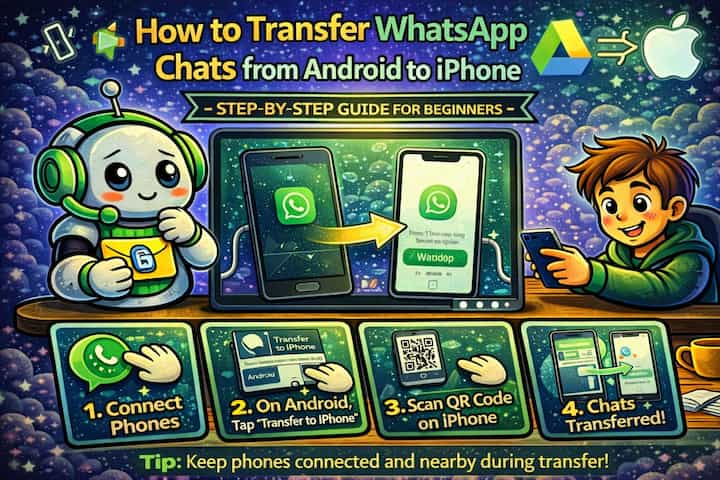
Quick Answer (For Those in a Hurry)
The transfer must happen during the iPhone's initial setup - before you finish configuring it. On your iPhone's setup screen, select Move Data from Android, open the Move to iOS app on your Android, enter the code shown on your iPhone, select WhatsApp as one of the data types, let WhatsApp prepare and transfer the data, then install WhatsApp on your iPhone and verify your number to complete the process. If your iPhone is already set up, you'll need to factory reset it to get this window back.
What This Guide Actually Helps You Do
This guide is designed for readers who want to recover or move important conversations only when the app gives you a reliable path to do it. It adds value beyond the basic menu path by explaining whether the backup or transfer method matches your phone number, cloud account, device type, and timing. That matters because people often reinstall the app or reset a phone before checking whether the backup is recent enough and linked to the right account.
The practical goal is to leave you with a result you can verify, not just a menu path you followed. It also keeps the limits visible: this guide does not pretend to offer recovering encrypted messages that were never backed up or accessing someone else's private data. It shows the reliable path, the trade-offs, and the checks that help you avoid repeating the same mistake.
Real Situations Where This Becomes Stressful
The transfer process is technical enough that most people only encounter it once - and usually under time pressure.
You just got a new iPhone and want to start using it, but you have years of WhatsApp history you're not willing to lose. The excitement of a new phone can work against you here. People rush through setup, tap through screens quickly, and either miss the Move to iOS prompt entirely or skip it thinking they can do it afterward. The window to transfer WhatsApp data without resetting the iPhone is exactly one moment: the initial setup screen. Understanding this before you turn on the iPhone for the first time is the difference between a clean transfer and a frustrating reset.
You're switching platforms for work, and your WhatsApp contains client conversations, contracts, and important professional history. This isn't just about sentiment - it's about continuity. If your work involves WhatsApp communication with clients or colleagues, losing that history isn't just inconvenient. You might need to reference what was agreed, when something was said, or what files were shared. The transfer process preserves that record exactly as it exists on your Android.
Someone else - a family member, a partner - is handing you their old iPhone to switch to, and the device is already set up. This is the scenario that creates the most confusion. A pre-owned or pre-configured iPhone means the setup window has already passed. There's no workaround: to access the WhatsApp transfer option during setup, the iPhone needs to go through first-boot setup. That means a factory reset, which most people are reluctant to do on a device that already has apps and settings on it. Knowing this upfront helps you plan the reset deliberately rather than discovering it mid-process.
Before You Start: One Thing to Know
The WhatsApp transfer option only appears during the iPhone's very first setup - it cannot be accessed after the iPhone has been configured. If your iPhone is already set up, even partially, you must factory reset it to get this window back. Go to Settings -> General -> Transfer or Reset iPhone -> Erase All Content and Settings before you begin. This is the single most important thing to do before starting, and the single most common reason the process fails.
Also: keep both devices on power and connected to the same Wi-Fi network throughout. The transfer goes directly between devices, but both need a stable connection to complete.
How to Transfer WhatsApp from Android to iPhone - Step by Step
Step 1 - Prepare Both Devices
Before touching either device, run a final backup on your Android. Open WhatsApp on your Android, go to Settings -> Chats -> Chat Backup, and tap Back Up Now. This isn't strictly required for the transfer, but it's a safety net in case something interrupts the process midway. Both devices should be plugged into power - this transfer can take a while and you don't want either device dying halfway through.
Step 2 - Turn On Your iPhone and Begin Setup
Power on your iPhone (or restart it after a factory reset). Work through the initial setup screens - language, region, Wi-Fi - until you reach the screen that asks how you want to set up your iPhone.
Step 3 - Select "Move Data from Android" and Open Move to iOS on Android
On the iPhone setup screen, select Move Data from Android. Your iPhone will display a code. On your Android phone, open the Move to iOS app (download it from the Google Play Store if you don't have it) and tap Continue, then Agree, then Next until you reach the screen asking for the code from your iPhone.
Step 4 - Enter the Code to Connect Both Devices
Enter the code displayed on your iPhone into the Move to iOS app on your Android. The two devices will establish a direct, encrypted connection. Your iPhone will create a temporary Wi-Fi network that your Android joins - this is normal and expected.
Step 5 - Select WhatsApp as a Data Type to Transfer
Move to iOS will display a list of content types to transfer. Make sure WhatsApp is selected. You can also select other content - contacts, photos, calendar - but for this guide the focus is WhatsApp. Tap Continue.
Step 6 - Let WhatsApp Prepare the Transfer on Android
Move to iOS will prompt WhatsApp on your Android to prepare your data. WhatsApp will open briefly, package your chat history and media, and signal that it's ready. This step can take several minutes for large chat histories - don't touch either device while it's processing.
Step 7 - Wait for the Transfer to Complete
The data transfers directly from your Android to your iPhone over the local connection. A progress indicator will display on your iPhone. The time required depends on how much data is being moved - a few minutes for small histories, potentially 30 minutes or more for years of messages and media. Do not disconnect either device or let them go to sleep during this step.
Step 8 - Install WhatsApp on iPhone and Verify Your Number
Once the transfer completes, finish your iPhone setup. Then go to the App Store, download WhatsApp, and open it. Enter the same phone number linked to your Android account and verify it with the code sent by SMS. WhatsApp will detect the transferred data and restore your chat history automatically during this verification step.
Your messages, photos, voice notes, and chat history will appear exactly as they were on your Android.
What Changes After the Transfer Completes
Once you've verified your number on the iPhone, WhatsApp on your Android is automatically logged out - the same phone number can only run one active WhatsApp session at a time. Your iPhone takes over as the primary device. The chat history on your iPhone is now a local copy, independent of your Android's Google Drive backup.
Going forward, your iPhone will back up to iCloud rather than Google Drive. The first time you open WhatsApp's backup settings on your iPhone, it will show no previous backup - that's expected, because iCloud backups are separate from Google Drive. Set up iCloud backup from that first session so future backups are protected on the new platform.
The transferred history is complete: conversations, media, voice notes, documents shared in chats. What doesn't transfer is your call history and some in-app settings. Everything that lives in your actual chat threads - the messages themselves - makes the trip.
Advanced Tips: Making the Transfer Go Smoothly
The process is straightforward when both devices cooperate. These four tips address the situations where they don't.
Install Move to iOS on your Android before the day of the switch, and update WhatsApp to the latest version on both devices. Outdated versions of either app can cause the transfer to fail or hang. Taking five minutes the day before to make sure both apps are current prevents one of the most frustrating failure modes - getting halfway through a transfer and hitting an incompatibility error.
If the transfer stalls or the progress bar stops moving, don't immediately restart - wait at least 10 minutes first. Large transfers over direct device connections can appear frozen while they're actually processing media files in the background. The progress indicator isn't always granular enough to reflect what's happening. Many apparent stalls resolve themselves if you wait rather than interrupting. Restarting mid-transfer is the main cause of incomplete migrations.
Disable battery optimization for Move to iOS on Android before starting. Some Android phones - particularly Samsung and Xiaomi devices - aggressively kill background apps to save battery. If battery optimization is active for Move to iOS, the app can be suspended mid-transfer. Go to Settings -> Battery -> Battery Optimization, find Move to iOS, and set it to "Don't optimize" before you begin.
If your iPhone is already set up and you want to avoid a factory reset, check whether WhatsApp's Move to iPhone feature within the app works for your version. In some newer versions of WhatsApp, there's a direct in-app transfer option accessible through WhatsApp Settings -> Chats -> Move Chats to iPhone that doesn't require the iPhone to be in first-boot setup. This feature isn't available in all regions or app versions yet, but it's worth checking before committing to a factory reset. If it's available on your devices, it's significantly more convenient.
What the Transfer Can't Do
The official transfer process is comprehensive but has genuine limits worth understanding. Call history doesn't transfer - your call log on Android stays on Android. WhatsApp account settings and some notification preferences don't carry over. And the transfer is one-directional and one-time: once you've completed it and started using WhatsApp on your iPhone, you can't go back and re-transfer from the Android to pick up anything that was missed without going through the full setup process again.
The window requirement is also inflexible. There's no way to access the Move Data from Android option after iPhone setup is complete without a factory reset. No settings menu, no hidden option, no workaround. If you finished setting up your iPhone before transferring, the reset is the only path.
The process also requires both devices to be physically present and functional. If your Android is broken, won't turn on, or can't run the Move to iOS app, the direct transfer method won't work. In that case, the only option is to restore from a Google Drive backup on an Android device first, then attempt the transfer - or accept that a cross-platform migration isn't possible from a non-functional source device.
Finally, very old Android devices may struggle with the connection step. The direct device connection used by Move to iOS relies on Wi-Fi Direct, which some older Android hardware handles poorly. If your Android is several years old and the connection step keeps failing, trying on a different Wi-Fi network or moving both devices closer together sometimes resolves it.
Frequently Asked Questions
The transfer completed but some of my chats are missing on the iPhone - is there anything I can do? First, give WhatsApp a few minutes after verification completes - occasionally chats load in batches and the full history takes a moment to appear. If chats are still missing after 10 - 15 minutes, it usually means those conversations weren't included in the transfer package, either because they were very old, because the transfer was interrupted, or because of a data inconsistency on the Android side. Unfortunately, there's no way to re-transfer selectively. The only options are to accept the partial history or repeat the entire process - factory reset the iPhone, run a fresh WhatsApp backup on Android, and transfer again.
Can I keep using WhatsApp on my Android after completing the transfer to iPhone? No - once you verify your number on the iPhone, your Android session is logged out. You can't run the same WhatsApp account actively on both an Android and an iPhone simultaneously. If you try to re-verify on the Android, it will log out the iPhone. WhatsApp's Linked Devices feature allows additional devices like tablets or computers, but it doesn't support two phones with the same primary number running simultaneously.
My transfer completed but WhatsApp on my iPhone is asking me to restore from iCloud backup instead - which should I choose? This can happen if you had a previous iCloud backup from an older iPhone on the same Apple ID. Choose the option to import from the transfer rather than restore from iCloud - the transfer data is the current, complete Android history. Restoring from an old iCloud backup would overwrite it with whatever was on the previous iPhone. If WhatsApp prompts you specifically about the Move to iPhone data during verification, confirm that you want to use the transferred chats.
Does the transfer work if I'm moving to an iPhone that was previously someone else's device? Yes, but only if the iPhone has been fully factory reset first. A device that was signed into someone else's Apple ID needs to be erased and set up fresh - both to remove the previous iCloud account and to give you access to the Move Data from Android option during first-boot setup. Make sure the previous owner has signed out of their Apple ID before you factory reset, otherwise you'll encounter Activation Lock, which prevents setup without the original owner's credentials.
After the transfer, should I delete WhatsApp from my Android right away, or keep it as a backup? Don't delete it immediately - keep it for a few days and verify that everything transferred correctly on your iPhone before removing it from the Android. Check a few specific conversations you care about, confirm media loaded properly, and make sure your most important chats are intact. Once you're satisfied, you can safely uninstall WhatsApp from Android. At that point, the Android's Google Drive backup becomes a historical archive - it will eventually expire after a year of inactivity per Google's policy, but it won't interfere with your iPhone setup in the meantime.
What To Verify Before You Finish
A good finish looks like this: you know exactly which backup or transfer source will be used and what newer messages could be missing afterward. Before moving on, do a small real-world test: check the backup date, account name, phone number, available storage, and internet connection before uninstalling or moving anything.
If the restore prompt does not appear or the transferred history is incomplete, the most likely explanation is that the phone number, Google account, Apple ID, device pair, storage permission, or backup location does not match the original setup. In that case, use the troubleshooting or limitation section above first, because repeating the same taps usually hides the real cause.
Related Guides
Read next: Use WhatsApp on two phones | Restore WhatsApp backup on a new phone | Change WhatsApp notification sounds
Final Thoughts
The Android-to-iPhone WhatsApp transfer is one of those processes that's genuinely straightforward - as long as you know the one rule before you start. The iPhone has to be in first-boot setup. Everything else follows from that. Know it going in, and the transfer is a matter of following steps. Discover it after you've already configured the iPhone, and you're looking at a reset. Thirty seconds of reading before you unbox the iPhone is worth a lot more than the hour it takes to reset and start over.