How to Stop WhatsApp Auto-Download (And Take Back Your Storage)
WhatsApp downloads media to your phone before you've decided whether you want it. Every photo, every video, every document sent in every group chat lands on your device automatically - saved to your gallery, consuming storage, burning through your mobile data, all without asking. Most people don't notice until their phone is full or their data plan is exhausted and they start looking for what's causing it.
The fix takes two minutes and the difference is immediate.
Quick Answer (For Those in a Hurry)
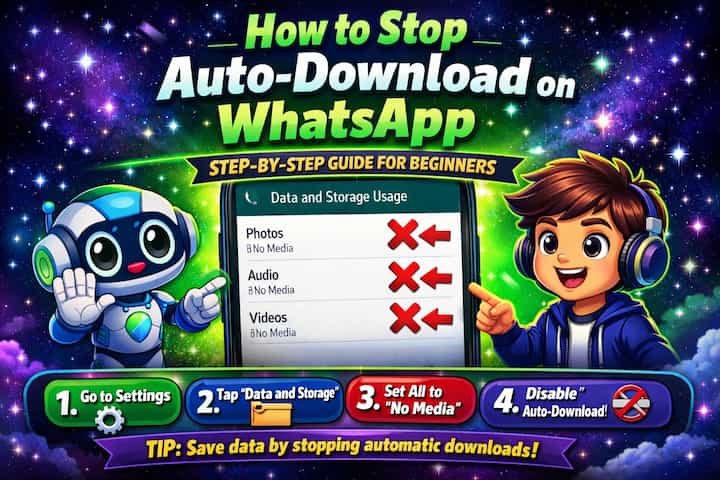
Go to WhatsApp -> Settings -> Storage and Data -> Media Auto-Download. You'll see three separate controls for mobile data, Wi-Fi, and roaming. For each one, uncheck the media types you don't want downloading automatically - typically Videos and Documents are the biggest offenders. Tap OK to confirm. From that point, those file types won't download unless you tap them manually.
What This Guide Actually Helps You Do
This guide is designed for readers who want to send or manage media without losing quality, storage, speed, or privacy control. It adds value beyond the basic menu path by explaining whether the file should be sent as media, as a document, through a link, or handled with a storage-saving setting. That matters because people often choose the fastest send button and only notice compression, failed uploads, missing previews, or storage problems later.
The practical goal is to leave you with a result you can verify, not just a menu path you followed. It also keeps the limits visible: this guide does not pretend to offer unlimited file size, perfect quality on every connection, or permanent access if the receiver deletes or loses the file. It shows the reliable path, the trade-offs, and the checks that help you avoid repeating the same mistake.
Real Situations Where This Actually Matters
Auto-download is a background problem that compounds invisibly until it hits a threshold that's hard to ignore.
You're in several active WhatsApp groups and your phone storage is constantly running low. A single group with 50 members that's active throughout the day can generate hundreds of images and videos every week - all saved automatically to your gallery. Multiply that across three or four groups and you're looking at gigabytes of content you never chose to keep. Disabling auto-download stops the accumulation immediately and makes your storage behavior predictable again.
You're traveling or on a limited mobile data plan and WhatsApp is burning through it faster than anything else. Auto-download over mobile data is particularly costly when you're abroad or on a capped plan. A single video sent in a group chat while you're not on Wi-Fi can be 50MB or more - and if it downloads automatically while you're commuting, you may not even notice until you check your usage. Restricting auto-download to Wi-Fi only means you keep the convenience at home while protecting your data everywhere else.
You want to stop unknown or unwanted content from landing on your device before you've had a chance to decide about it. This is especially relevant for people added to groups they didn't ask to join, or for anyone receiving media from contacts they don't fully trust. Auto-download means content exists on your phone before you've seen it. Disabling it means you choose what to accept - the preview shows in the chat, but the file doesn't download until you tap it.
Before You Start: One Thing to Know
Disabling auto-download affects future downloads only - it does not remove media that's already been saved to your phone. Anything downloaded before you change the settings stays in your gallery and in your WhatsApp storage. If you want to reclaim storage from existing media, you'll need to go to Settings -> Storage and Data -> Manage Storage and delete files there separately. The auto-download setting is a gate for new content, not a cleanup tool for old content.
This surprises a lot of people who change the setting expecting immediate storage recovery.
How to Stop WhatsApp Auto-Download - Step by Step
Step 1 - Open WhatsApp Settings
Open WhatsApp and tap the three dots in the top-right corner, then select Settings.
Step 2 - Go to Storage and Data
Tap Storage and Data to access all settings related to data usage and media storage.
Step 3 - Find Media Auto-Download
Scroll to the Media Auto-Download section. You'll see three separate rows - one for when you're on mobile data, one for Wi-Fi, and one for roaming.
Step 4 - Adjust Mobile Data Settings
Tap When Using Mobile Data. A dialog appears showing four media types: Photos, Audio, Videos, and Documents. Uncheck the types you don't want downloading over mobile data. For most people, unchecking Videos and Documents has the biggest impact. Tap OK to confirm.
Step 5 - Adjust Wi-Fi Settings
Tap When Connected on Wi-Fi. The same four media types appear. Since Wi-Fi doesn't cost you data, you might be more permissive here - but if storage is the concern rather than data, apply the same restrictions. Tap OK.
Step 6 - Adjust Roaming Settings
Tap When Roaming. This controls downloads when you're using mobile data abroad. The safest setting while roaming is to uncheck everything - photos, audio, videos, and documents - since roaming data charges can be expensive and unexpected downloads add up fast. Tap OK.
Step 7 - Review Your Final Configuration
Take a moment to review all three rows. A sensible default for most people: Photos only on Wi-Fi, nothing on mobile data, nothing while roaming. This means group chat photos load automatically when you're home on Wi-Fi, but nothing downloads when you're out.
Step 8 - Confirm and Return to Chats
Your settings are saved automatically as you confirm each dialog. Tap the back button to return to your chats. The changes take effect immediately.
What Changes After You Disable Auto-Download
The difference shows up immediately in your chat experience. When someone sends a photo or video in a group, instead of it silently saving to your gallery, you'll see a thumbnail preview in the chat with a small download button - a circular arrow or a download icon overlaid on the image. Tapping it downloads the file. Ignoring it means it never touches your storage.
For your phone gallery, new media from WhatsApp stops appearing unless you explicitly choose to download it. This has a significant organizational benefit beyond storage: your camera roll stops filling with images from group chats you barely read.
Your mobile data behavior changes too. WhatsApp's background data usage drops noticeably once auto-download is off for mobile data. The app still sends and receives messages, syncs notifications, and handles calls normally - it just no longer downloads media files silently in the background.
The setting doesn't affect your ability to view media. You can still tap any file in a chat to download and view it. The only change is that it requires your active decision rather than happening by default.
Advanced Tips: Getting Smarter About Storage Management
Turning off auto-download is the most important step, but these four approaches build a more complete system.
Use WhatsApp's built-in storage manager to identify and delete the biggest files already on your device. Go to Settings -> Storage and Data -> Manage Storage. WhatsApp shows you your storage usage broken down by contact and group, sorted by size. You can see which groups have sent the most media, review it, and delete in bulk without leaving the app. This is the cleanup step that pairs with the auto-download prevention - do both and you recover the most storage.
Set auto-download to "Photos only" on Wi-Fi rather than disabling everything. A completely disabled auto-download means you have to manually tap every image in every chat, which becomes annoying quickly. A smarter middle ground: allow photos on Wi-Fi (they're small and usually worth seeing) while blocking videos and documents on all connections. This gives you the browsing experience of seeing images in chats while preventing the heavy files that actually eat storage.
Prevent WhatsApp media from appearing in your phone's main gallery by disabling the Media Visibility setting. Even if you allow some auto-downloads, you can stop them from cluttering your camera roll. Go to Settings -> Chats and toggle off Media Visibility. WhatsApp media will still download and be viewable inside the app, but it won't appear in your phone's gallery app. This is particularly useful if you don't want WhatsApp group photos mixed in with your personal photos.
Review your storage situation monthly and delete chats you no longer need. Even with auto-download off, message text and small media accumulates. WhatsApp allows you to delete individual chats or clear chat history through the chat settings, which frees storage for both messages and any media that slipped through. Going into Manage Storage once a month and clearing the biggest offenders takes about two minutes and keeps your storage in a manageable state long-term.
What These Settings Can't Fix
Changing auto-download settings stops future accumulation - it doesn't address the existing situation. If you've had WhatsApp for three years with auto-download fully enabled, you likely have several gigabytes of media already saved. The auto-download setting change is a gate for new content, and the Manage Storage tool handles the cleanup, but clearing a large existing backlog takes more active effort than a single setting change.
There's also a limitation around what "no download" actually means for previews. When auto-download is disabled, WhatsApp still fetches small thumbnails to show you previews in the chat. These are much smaller than the actual files, but they're not zero. On very slow or very limited connections, even thumbnails can occasionally cause minor data usage.
For media sent in chats before you changed the settings, those files are already on your device and will stay there until you delete them manually. The setting change only affects what happens going forward from the moment you make the change.
Finally, these are per-device settings. If you use WhatsApp on a linked second phone or companion device, you'll need to adjust auto-download settings on each device separately - they don't sync. The same applies if you reinstall the app or switch phones; the auto-download preferences don't carry over in backup and you'll need to reconfigure them.
Frequently Asked Questions
After I disabled auto-download, WhatsApp is still downloading some media automatically - why? The most likely cause is a conflict between WhatsApp's in-app settings and your phone's background data settings. On Android, some phones have a system-level setting that allows apps to download in the background regardless of in-app settings - check your phone's Settings -> Apps -> WhatsApp -> Data Usage and look for a background data toggle. Also verify that you confirmed each of the three auto-download dialogs (mobile data, Wi-Fi, roaming) with OK rather than just navigating away.
If I disable auto-download for photos, can I still see photos that are sent to me in chats? Yes. Disabling auto-download doesn't hide photos - it just means they don't download automatically. You'll see a thumbnail preview in the chat, and tapping it downloads and displays the full image. The only difference is that it requires one extra tap. The photo still exists and is fully accessible; it just doesn't land on your device until you choose to download it.
Does disabling auto-download affect how quickly WhatsApp sends media that I'm uploading? No. Auto-download settings only control what WhatsApp downloads to your device from others. Your own uploads are unaffected - photos and videos you send through WhatsApp upload at normal speed regardless of your download settings. The two are independent processes.
Will the media I declined to download still be accessible later if I change my mind? Yes, as long as the sender hasn't deleted the message. WhatsApp media that wasn't auto-downloaded can still be retrieved by tapping the download button in the chat at any time after it was sent. The file remains on WhatsApp's servers for a period of time (typically around 30 days for most media types). After that window, if you haven't downloaded it, it may no longer be available. For important files you want to keep, download them promptly rather than leaving them in the pending state indefinitely.
If I clear WhatsApp cache on my phone, does that also remove auto-downloaded media? No. WhatsApp media downloaded through auto-download is stored in your phone's main storage, not in the app's cache. Clearing the cache removes temporary files like thumbnail data and session information, which can sometimes free a small amount of space, but it doesn't touch your downloaded media. To remove downloaded media, use WhatsApp's Manage Storage tool or delete the files directly from your phone's file manager in the WhatsApp folder.
What To Verify Before You Finish
A good finish looks like this: the receiver can open the file, the quality is acceptable, and the storage or download behavior matches what you intended. Before moving on, do a small real-world test: send one sample file first, confirm the size and preview on the receiving device, and check whether Wi-Fi or mobile data changes the result.
If the upload fails, the file looks compressed, or the receiver cannot open it, the most likely explanation is that the file type, size limit, network quality, device storage, or in-app compression setting is blocking the result. In that case, use the troubleshooting or limitation section above first, because repeating the same taps usually hides the real cause.
Related Guides
Read next: Use WhatsApp Web on PC | Create WhatsApp broadcast lists | Create a WhatsApp group step by step
Final Thoughts
Auto-download is one of those default settings that makes sense in theory - always have media ready - but creates real problems in practice for anyone in active group chats or on a limited data plan. Two minutes in the Storage and Data settings, combined with a quick pass through Manage Storage, makes an immediate and noticeable difference. Once it's done, WhatsApp stays out of your gallery and out of your data budget unless you tell it otherwise.