How to Use Telegram on PC (Desktop App vs Web - Which One to Choose)
Telegram's desktop app is genuinely one of the better desktop messaging clients available - fast, full-featured, and nearly identical in capability to the mobile app. Whether you install the dedicated application or use the browser version depends on how you use Telegram and whether you want it running persistently on your computer. Both work well; they just serve slightly different patterns of use.
Quick Answer (For Those in a Hurry)
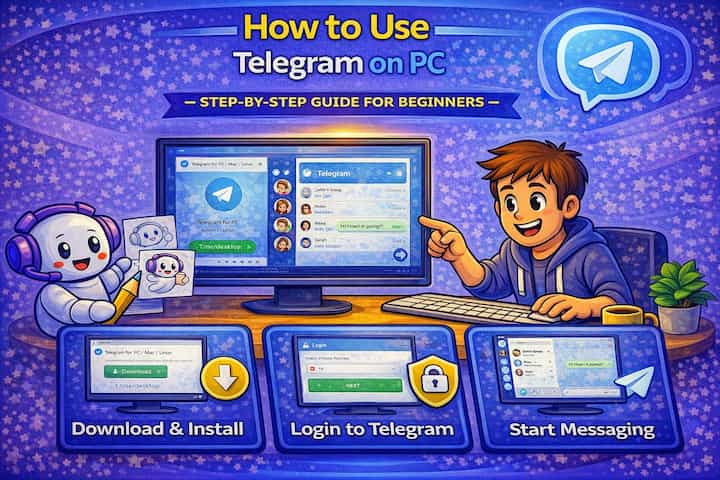
Download the Telegram Desktop app from desktop.telegram.org, install it, open it, and log in by entering your phone number - Telegram sends a verification code to your existing Telegram app on your phone. Your chats sync instantly. Alternatively, open web.telegram.org in any browser for immediate access without installation. Both versions support the full Telegram feature set, though the desktop app has better performance and keyboard shortcut support.
What This Guide Actually Helps You Do
This guide is designed for readers who want to recover or move important conversations only when the app gives you a reliable path to do it. It adds value beyond the basic menu path by explaining whether the backup or transfer method matches your phone number, cloud account, device type, and timing. That matters because people often reinstall the app or reset a phone before checking whether the backup is recent enough and linked to the right account.
The practical goal is to leave you with a result you can verify, not just a menu path you followed. It also keeps the limits visible: this guide does not pretend to offer recovering encrypted messages that were never backed up or accessing someone else's private data. It shows the reliable path, the trade-offs, and the checks that help you avoid repeating the same mistake.
Real Situations Where the Desktop App Changes How You Work
Mobile Telegram is sufficient for casual use. Desktop Telegram is meaningfully different for specific types of usage.
You manage one or more Telegram channels or groups and spend meaningful time moderating, editing, and responding. Moderation at scale is significantly faster on desktop - keyboard navigation, the ability to right-click for quick actions, and the larger interface for reading and reviewing messages all add up. Tasks that require attention to detail (editing an announcement, reviewing a moderation log, writing a detailed response) are faster and less error-prone when you're not on a touchscreen.
You regularly share files from your computer - documents, exports, large media files - in Telegram conversations. The drag-and-drop file sharing on Telegram Desktop is one of the most convenient file-sending experiences available in any messaging app. Open the chat, drag the file from your file explorer, drop it in - done. No exporting to phone, no cloud storage intermediary, no forwarding steps. For anyone whose work involves regularly sending computer files to Telegram contacts or groups, this alone justifies using the desktop app.
You use Telegram as part of a broader workflow - alongside other tools like a browser, code editor, or document suite - and want it accessible without context-switching to your phone. Telegram Desktop sits in your taskbar alongside everything else. Notifications appear as desktop notifications. Files from your open applications go straight to Telegram without extra steps. The desktop app becomes part of your workspace rather than a separate device you reach for.
Before You Start: One Thing to Know
Logging into Telegram Desktop or Telegram Web requires your existing Telegram account and verification through your phone - but after that initial login, Telegram Desktop works fully independently of your phone. You don't need your phone online or nearby for the desktop app to function. This is different from WhatsApp Web, where the phone needs to be connected. Telegram's cloud architecture means the desktop app connects directly to Telegram's servers. Once you've verified the new device login, it operates on its own.
How to Set Up Telegram on PC - Step by Step
Method 1 - Telegram Desktop App (Recommended for Regular Use)
Step 1 - Download Telegram Desktop
Go to desktop.telegram.org and download the version for your operating system. On Windows, it's a standard installer. On Mac, it's available from the Mac App Store or directly from Telegram's site. On Linux, multiple installation methods are available including a Flatpak and an AppImage. Always download from the official source.
Step 2 - Install the Application
Run the installer and follow the standard installation steps. No unusual configuration is needed. Telegram Desktop installs quickly and creates a desktop shortcut and taskbar entry. On Mac, drag to the Applications folder.
Step 3 - Log In to Your Account
Open Telegram Desktop. The login screen offers two options: entering your phone number (Telegram sends a code to your existing Telegram app or via SMS) or scanning a QR code. The QR code method is faster - on your phone, go to Settings -> Devices -> Link Desktop Device, scan the QR code shown on your computer screen, and you're logged in immediately without entering any codes.
Step 4 - Wait for Chat Sync
After logging in, Telegram Desktop loads your full chat history, contacts, and media from Telegram's cloud. This typically takes a few seconds for most accounts. For accounts with years of history and large media libraries, the first load may take a minute. Everything is accessible from that point forward without any manual setup.
Method 2 - Telegram Web (No Installation Required)
Step 5 - Open web.telegram.org in Any Browser
Navigate to web.telegram.org in Chrome, Firefox, Safari, or any modern browser. Log in the same way as the desktop app - phone number + verification code, or QR code scan. Telegram Web provides the same core functionality as the desktop app in a browser tab.
Using Telegram Desktop Day-to-Day
Step 6 - Send Messages and Use the Keyboard
Type in any chat and press Enter to send. Shift+Enter creates a line break without sending. The desktop app supports Telegram's full message formatting - bold, italic, code blocks, links, and more - accessible through right-clicking selected text or using markdown syntax. Editing past messages (up arrow key to edit the last message), forwarding, pinning, and all other message actions are available through the right-click context menu.
Step 7 - Share Files via Drag and Drop
Drag any file from Windows Explorer or macOS Finder directly onto any Telegram chat window. A confirmation dialog appears showing the file name and size. Click Send. This is the fastest way to share files from your computer - no attachment menu navigation needed. For images specifically, Telegram will ask whether you want to send as a photo (with compression) or as a file (without compression) - choose file if quality matters.

Step 8 - Access Advanced Features
The desktop app supports all of Telegram's features that are available on mobile - channel management, group moderation, bot interactions, scheduled messages, secret chats (limited on some desktop versions), sticker packs, and message search. The settings panel includes all privacy, notification, and account settings accessible on mobile.
What Changes When You Use Telegram on Desktop
The most immediate practical difference is speed - typing, editing, searching, and navigating conversations is faster with a physical keyboard and larger interface. For people who write longer messages, manage groups, or interact with Telegram heavily as part of their workday, this adds up to noticeable time savings.
Desktop notifications work independently - you see Telegram messages appear as system notifications even when you're in another application. For people who check Telegram frequently throughout the day, this eliminates the need to switch to the phone repeatedly.
File sharing becomes a different category of action on desktop. Instead of exporting from your computer to your phone and then to Telegram, the computer is the source and Telegram is a direct destination. Large files upload over your full internet connection speed rather than through a phone's more variable mobile data or limited Wi-Fi.
The desktop app and mobile app stay in sync continuously - anything sent or received on either device appears on both within seconds. You can start a conversation on your phone and continue it on your desktop without any manual steps.
Advanced Tips: Getting More Out of Telegram Desktop
Learn the keyboard shortcuts for navigation and actions. Telegram Desktop has a comprehensive set of keyboard shortcuts that most users never discover. Ctrl+K opens chat search, Ctrl+N starts a new message, Alt+Up/Down moves between chats, Ctrl+F searches within the current chat, and Ctrl+Q quits the app. In active use with many chats, these shortcuts are significantly faster than mouse navigation. The full list is accessible in the app settings under Advanced.
Use multiple accounts in Telegram Desktop without separate installations. Telegram Desktop supports multiple active accounts simultaneously - go to Settings -> Add Account and log in with a second phone number. A small toggle at the top of the sidebar switches between accounts. This is particularly useful for separating work and personal use, or for managing client or community accounts alongside a personal one. All accounts sync independently and show notifications separately.
Set up a local passcode for Telegram Desktop on shared or semi-public computers. Go to Settings -> Privacy and Security -> Local Passcode and set a PIN. This locks Telegram Desktop and requires the PIN to reopen it, similar to the mobile passcode lock. For computers that others may use, this prevents access to Telegram even if the computer is unlocked. It's different from your account password - it's purely local to that installation.
Use Telegram Desktop's column layout on wide screens for multi-panel navigation. On wider monitors, Telegram Desktop can display a three-column layout - chat list on the left, conversation in the center, and contact details or media on the right. This layout appears automatically when the window is wide enough. For power users managing many channels and groups, the three-column layout provides persistent context without clicking between panels.
What the Desktop App Does Differently From Mobile
Secret Chats - Telegram's end-to-end encrypted conversations - have limited or no desktop support depending on the platform. The fundamental architecture of secret chats is device-specific and designed around mobile, and some desktop versions don't fully implement them. For sensitive conversations requiring end-to-end encryption, mobile is still the appropriate device.
Animated stickers and some advanced media rendering perform slightly differently on desktop depending on your hardware acceleration settings. If animated stickers appear choppy or lag, going to Settings -> Advanced -> Experimental and toggling hardware acceleration options can improve performance.
Voice and video calls work on Telegram Desktop with a microphone and camera connected, but the quality and behavior can vary more than on mobile depending on your hardware configuration and drivers. For important calls where reliability matters, testing beforehand is worth the two minutes.
Frequently Asked Questions
If I'm using Telegram on my phone and my PC simultaneously, do both show the same notifications? Yes. Both devices receive notifications for the same messages simultaneously. When you read a message on one device, Telegram marks it as read on both - the unread indicator and notification clear on the other device once you've read it. This sync happens in real time. If you want one device to stop receiving notifications, you can set Do Not Disturb on that device specifically without affecting the other.
Can I use Telegram Desktop without having the mobile app installed on my phone? You need a phone number to create and verify a Telegram account, and the initial device login requires verification through Telegram or SMS. But once your account is created and Telegram Desktop is linked, you don't need the phone app running for desktop to work. Many people use Telegram Desktop as their primary client and only use their phone incidentally. The phone is required for the initial account creation and for each new device login verification.
Telegram Desktop isn't showing new messages even though my phone shows them - what's causing the sync delay? Usually a network connectivity issue on the computer. Telegram Desktop maintains a persistent connection to Telegram's servers - if that connection drops and doesn't reconnect automatically, messages stop appearing until the connection restores. Check your internet connection, and if it's working but Telegram still isn't updating, quit and restart the app. If the issue is persistent, check whether a firewall or security software is blocking Telegram's connection.
Does Telegram Desktop store messages locally, and what happens if I uninstall it? Telegram Desktop stores a local cache of recent messages and media for faster loading, but your full message history lives on Telegram's cloud servers. If you uninstall Telegram Desktop, the local cache is deleted but your account, messages, and files are unaffected - everything remains on Telegram's servers and is accessible when you log in on any device. Reinstalling and logging back in restores access to everything.
Can I use Telegram Desktop offline to read past messages? Partially. Telegram Desktop caches recent conversations locally, and cached content is readable when you're offline. However, you can't send messages, receive new ones, or access content that isn't in the local cache. Older messages that weren't recently cached require an internet connection to load from Telegram's servers. The amount of content cached locally depends on how recently you viewed it and your device's storage.
What To Verify Before You Finish
A good finish looks like this: you know exactly which backup or transfer source will be used and what newer messages could be missing afterward. Before moving on, do a small real-world test: check the backup date, account name, phone number, available storage, and internet connection before uninstalling or moving anything.
If the restore prompt does not appear or the transferred history is incomplete, the most likely explanation is that the phone number, Google account, Apple ID, device pair, storage permission, or backup location does not match the original setup. In that case, use the troubleshooting or limitation section above first, because repeating the same taps usually hides the real cause.
Related Guides
Read next: Transfer Telegram to a new phone | Create Telegram stickers | Use Telegram voice chat
Final Thoughts
The QR code login is the detail that makes the initial setup feel effortless - open the app on your phone, scan, and you're in. After that, the drag-and-drop file sharing and keyboard shortcut navigation are the two features that make the most practical difference for daily use. Both take minutes to start using and have an outsized effect on how efficiently Telegram fits into a computer-based workflow.