How to Transfer Telegram to a New Phone (Without Losing Anything)
Switching to a new phone usually means dealing with backups, cables, and the risk of losing conversations. Telegram works differently. Your messages, media, and contacts are not stored on your phone in the traditional sense - they are stored in Telegram's cloud and tied to your account.
That changes everything about how device switching works. You're not transferring data from one phone to another. You're simply reconnecting a new device to an account that already has everything.
What most people don't realize is that this makes Telegram both easier and stricter at the same time. Easier, because there's nothing to migrate. Stricter, because access to your account depends entirely on your ability to verify your phone number.
Quick Answer (For Those in a Hurry)
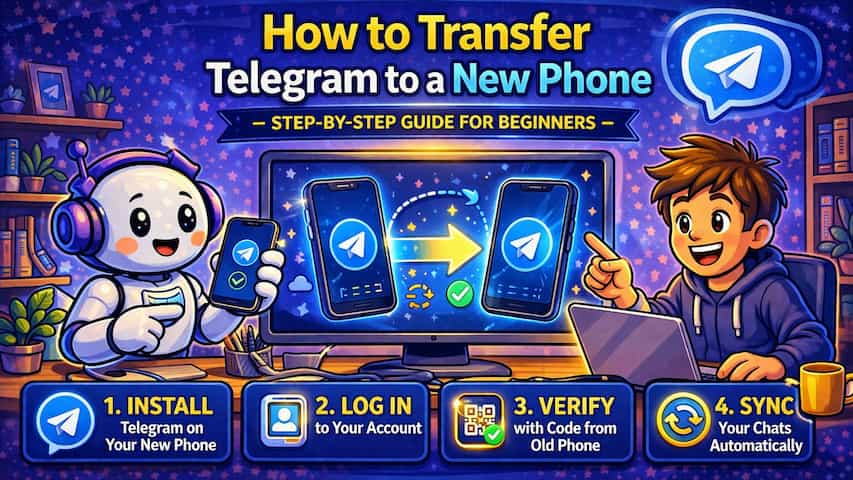
Install Telegram on your new phone, enter your phone number, and verify the code you receive. Your chats, media, and contacts automatically sync from Telegram's cloud within seconds. There is no backup to restore and nothing to manually transfer.
What This Guide Actually Helps You Do
This guide is designed for readers who want to recover or move important conversations only when the app gives you a reliable path to do it. It adds value beyond the basic menu path by explaining whether the backup or transfer method matches your phone number, cloud account, device type, and timing. That matters because people often reinstall the app or reset a phone before checking whether the backup is recent enough and linked to the right account.
The practical goal is to leave you with a result you can verify, not just a menu path you followed. It also keeps the limits visible: this guide does not pretend to offer recovering encrypted messages that were never backed up or accessing someone else's private data. It shows the reliable path, the trade-offs, and the checks that help you avoid repeating the same mistake.
Real Situations Where This Actually Matters
Most people don't think about how Telegram handles data until they switch devices - and that's where the difference becomes obvious.
You just bought a new phone and expect a long migration process. With most apps, this means restoring backups or transferring files. With Telegram, you log in and everything appears almost instantly. Conversations, media, groups - it all comes back without effort, which makes upgrading devices significantly less painful.
You need to use Telegram across multiple devices for work or personal use. Telegram doesn't force you to choose one device. You can stay logged in on your old phone, your new phone, and even your computer at the same time. Conversations stay synchronized in real time, which makes switching between devices seamless.
You lost access to your previous phone completely. As long as you still have access to your phone number, you can recover your entire account on a new device without needing the old one at all. This is where Telegram's cloud model is significantly more resilient than local-backup-based apps.
Before You Start: One Thing to Understand
Telegram doesn't transfer your data between devices - it reconnects you to it. Your messages already exist in Telegram's cloud. Logging into a new phone simply gives that device access to the same data. The only exception is secret chats, which are device-specific and do not sync.
How to Transfer Telegram to a New Phone - Step by Step
Step 1 - Install Telegram on Your New Phone
Download Telegram from the official app store for your device. Avoid unofficial versions to prevent login issues or security risks.
Step 2 - Open the App
Launch Telegram and begin the setup process. Unlike other apps, you won't be asked to restore anything - Telegram goes straight to account login.
Step 3 - Enter Your Phone Number
Type the phone number linked to your existing Telegram account. This is the only piece of information needed to locate your account.
Step 4 - Verify Your Identity
Telegram sends a verification code. If you're still logged in on another device, the code often appears directly inside Telegram instead of via SMS, which is faster and more secure.
Step 5 - Access Your Account
Once the code is accepted, your account loads immediately. There is no restore process - your conversations simply appear.
Step 6 - Let Everything Sync
Messages appear almost instantly, while media like photos and videos load progressively depending on your connection speed. This can take a few seconds or a few minutes.
Step 7 - Adjust Your Settings
Notifications, privacy settings, and interface preferences may need to be reconfigured depending on how your previous device was set up.
Step 8 - Review Active Sessions (Recommended)
After logging in, you can remove your old device from active sessions if you no longer use it. This improves security and ensures only your current device has access.
What Actually Changes After Switching Phones
From a practical standpoint, almost nothing changes. Your chats, groups, channels, and contacts remain exactly where they were, and your experience continues where you left off.
The only noticeable difference is that media files are not always stored locally on the new device, so they reload from the cloud when you open them. This is why conversations appear instantly, but images and videos may take slightly longer.
Telegram doesn't rely on device backups like WhatsApp or iCloud. That's why switching devices feels instant - but it also means your access depends entirely on your phone number and verification process.
Common Problems People Run Into (And How to Actually Fix Them)
Switching phones is simple in theory, but real-world situations are often messier.
You no longer have access to your SIM card This is the most common blocking issue. Telegram requires a verification code sent to your number or an existing session. If you've lost your SIM and are not logged in anywhere else, recovery becomes difficult. The only reliable solution is to regain access to your number through your carrier.
You changed your phone number before transferring If you log in with a new number, Telegram creates a new account instead of restoring your old one. The correct approach is to change your number inside Telegram settings before switching devices, not after.
The verification code never arrives In many cases, Telegram sends the code inside your existing Telegram session instead of by SMS. Users often wait for a text message that never comes. Checking your old device usually solves this instantly.
Chats look empty or incomplete after login This is almost always a syncing issue, not data loss. Telegram loads text first and media later. Waiting or switching to a better connection usually resolves it.
You were using secret chats heavily Secret chats are tied to a specific device and are never stored in the cloud. They do not transfer under any circumstances. This surprises many users who expect full recovery.
Advanced Tips That Make a Difference
Keep your old device connected during setup When your old device is still active, Telegram often sends the verification code internally instead of via SMS, which speeds up the process and avoids delays.
Enable two-step verification before switching devices Adding an extra password layer protects your account during the transition and prevents unauthorized access, especially if your SIM is compromised.
Use a stable internet connection for the first sync A slow connection can make it look like messages or media are missing, when they are simply still loading from the cloud.
Check active sessions after login Reviewing connected devices helps you detect anything unusual and gives you full control over your account security.
What Doesn't Transfer (And Why)
Secret chats do not transfer because they are designed to be device-specific and are not stored in Telegram's cloud. This is intentional and part of their security model.
Some local settings and temporary files may also not carry over, but this does not affect your messages or account data.
Frequently Asked Questions
Why does my account show me as online on multiple devices? Telegram allows multiple active sessions, so your status reflects activity across all connected devices.
Does switching phones affect read receipts? No, read receipts behave exactly the same regardless of the device you use.
Why didn't I receive the verification code? This is usually due to network issues or incorrect number input. If you're logged in elsewhere, the code may be sent inside Telegram instead of by SMS.
Why are my photos and videos not loading immediately? Media loads on demand from the cloud, so it depends on your internet connection speed.
Can I use Telegram on both phones at the same time? Yes, Telegram fully supports multiple devices simultaneously.
What To Verify Before You Finish
A good finish looks like this: you know exactly which backup or transfer source will be used and what newer messages could be missing afterward. Before moving on, do a small real-world test: check the backup date, account name, phone number, available storage, and internet connection before uninstalling or moving anything.
If the restore prompt does not appear or the transferred history is incomplete, the most likely explanation is that the phone number, Google account, Apple ID, device pair, storage permission, or backup location does not match the original setup. In that case, use the troubleshooting or limitation section above first, because repeating the same taps usually hides the real cause.
Related Guides
Read next: Use Telegram voice chat | Use Telegram on PC | Delete Telegram account
Final Thoughts
Telegram removes most of the friction involved in switching devices, but it replaces it with something else: dependency on your phone number.
As long as you understand that everything is stored in the cloud and that access depends on verification, the process becomes simple and predictable.
Switching phones stops being a technical operation and becomes what it should be - logging back into your account.