How to Mute Someone on Discord (Every Method, for Every Situation)
Discord's mute options are more granular than most people realize. There's muting someone locally in a voice channel (only you stop hearing them), server muting someone as a moderator (everyone stops hearing them), muting notification alerts from a specific person, muting an entire channel, and adjusting individual user volume without muting at all. Each one solves a different problem, and knowing which to use saves you from reaching for a heavier tool than the situation actually requires.
Here's every mute method on Discord, clearly separated by what it does and when to use it.
Quick Answer (For Those in a Hurry)
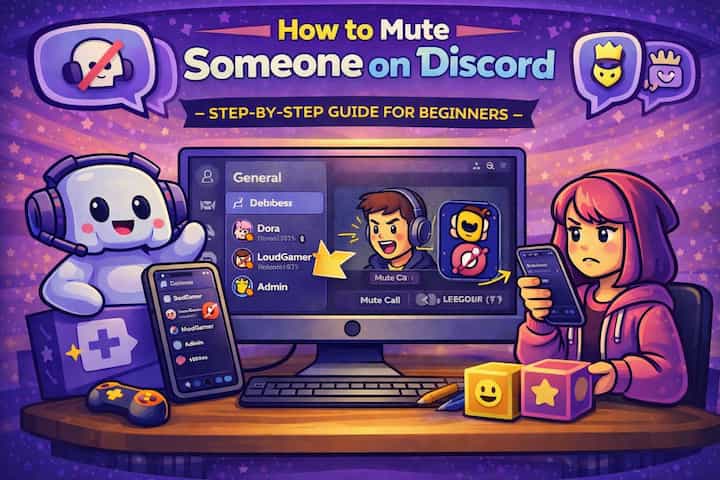
To mute someone in a voice channel so only you stop hearing them, right-click their name in the voice channel participant list and select Mute. To reduce their volume without muting completely, right-click and drag the User Volume slider. To stop notification alerts from a specific person without blocking them, right-click their username and select Mute Notifications. None of these actions notify the other person.
What This Guide Actually Helps You Do
This guide is designed for readers who want to change privacy or safety settings without misunderstanding what other people can still see. It adds value beyond the basic menu path by explaining which signals are hidden, which ones remain visible, and whether the change affects one conversation, one contact, or the whole account. That matters because privacy features are easy to overestimate, especially when screenshots, notifications, profile visibility, or group behavior still reveal context.
The practical goal is to leave you with a result you can verify, not just a menu path you followed. It also keeps the limits visible: this guide does not pretend to offer total invisibility, message secrecy against screenshots, or a way to bypass another person's privacy settings. It shows the reliable path, the trade-offs, and the checks that help you avoid repeating the same mistake.
Real Situations Where the Right Mute Option Actually Matters
The difference between Discord's mute options matters most in specific situations - using the wrong one either does too little or more than you intended.
You're in a voice channel and one person is too loud, has background noise, or is talking over everyone. You don't want to kick them or cause an issue - you just want to stop hearing them, or hear them at a lower volume than everyone else. The right tool here is the local mute (right-click -> Mute) or the individual volume slider. Both are invisible to the other person and don't affect anyone else in the channel. This is a personal audio adjustment, not a moderation action.
Someone in a server is sending frequent messages you don't want notifications for, but you still want to be able to see those messages if you choose to open the channel. You're not trying to block them - you just don't want your phone or desktop buzzing every time they post. Muting their notifications through the right-click menu stops the alerts without hiding the messages. You'll still see everything in the channel; you just won't be interrupted by it.
You're a moderator and someone is being disruptive in a voice channel - talking over others, making inappropriate sounds, or violating server rules. This is where server mute comes in. A server mute prevents that person from speaking in any voice channel across the entire server, and it's visible to everyone. It's a moderation tool rather than a personal preference setting, and it should be used deliberately rather than casually.
Before You Mute: One Thing to Know
There are two completely different types of mute on Discord, and they work differently. A local mute - when you mute someone yourself - only affects what you hear. The person can still talk and everyone else in the channel still hears them normally. A server mute - applied by a moderator - prevents the person from broadcasting audio to anyone in the channel. These are separate actions with separate consequences. Using the right one for the situation prevents either under-responding (only you stop hearing them when everyone should) or over-responding (server muting someone when you just wanted personal quiet).
How to Mute Someone on Discord - Method by Method
Method 1 - Local Mute in a Voice Channel (Desktop)
Step 1 - Find the User in the Voice Channel
While in a voice channel, look at the participant list on the right side of the screen or in the voice channel section of the sidebar. Find the person you want to mute.
Step 2 - Adjust Their Volume or Mute Them
Right-click their username in the participant list. You'll see two options relevant here: Mute (stops you from hearing them completely) and a User Volume slider (lets you set their volume from 0% to 200% relative to your other audio). If someone is just too loud rather than needing to be silenced, the volume slider is the more proportionate response - you can bring them down to a comfortable level rather than cutting them off entirely.
Method 2 - Mute Notifications From a Specific Person
Step 3 - Right-Click the User and Mute Notifications
Find the person's username in any channel, right-click it, and select Mute Notifications (the exact wording may vary slightly depending on your Discord version). Choose a duration - 15 minutes, 1 hour, 8 hours, 24 hours, or indefinitely. This stops notification alerts from their messages without hiding or blocking anything. You'll still see their messages if you open the channel - you just won't be pinged for them.
Method 3 - Mute an Entire Channel
Step 4 - Right-Click the Channel and Set a Mute Duration
If the issue is a busy channel rather than a specific person, right-click the channel name in the sidebar and select Mute Channel. Choose how long to mute it. All notifications from that channel are suppressed for the duration - messages still appear when you open the channel, but your notification count and alert sounds don't trigger.
Method 4 - Server Mute (Moderators Only)
Step 5 - Apply a Server Mute to a Disruptive Member
If you have moderation permissions (Mute Members permission in your role), right-click the person's username in a voice channel and select Server Mute. This removes their ability to speak in any voice channel across the server until unmuted. It's visible to the user - they'll see a server mute indicator on their own controls. Use this for genuine moderation situations rather than personal preference.
Method 5 - Mute on Mobile
Step 6 - Mute on the Discord Mobile App
On mobile, the process is the same action with a touch-based gesture. In a voice channel, tap a participant's name to see options including mute and volume adjustment. In text channels, tap and hold a username to open the context menu and access notification muting. The same options are available - local mute, volume adjustment, notification mute, and server mute (if you have the permissions) - all accessible through the same long-press or tap interface.
Step 7 - Unmute When Needed
Every mute is reversible. Right-click the same username (or tap and hold on mobile) and the mute option will now show as active - click or tap again to unmute. For channel mutes with a set duration, you can either wait for the timer or right-click the channel and select Unmute Channel to end it early. For server mutes, a moderator reverses it through the same right-click menu.
What Changes for Each Person After You Mute
From your perspective, a local mute or volume adjustment creates immediate silence or reduced audio - you stop hearing the person, or hear them more quietly, while the rest of the channel continues normally. There's no gap, no notification to the other person, and no change to how they appear in the channel list. They have no way to know you've muted them specifically.
For a notification mute, nothing changes in Discord's interface for either person. The person continues sending messages, those messages appear in the channel when you look at it, and you simply don't receive the alert banners and sounds that would otherwise accompany them.
A server mute is the one with visible consequences. The muted person sees a server mute icon on their own interface - they know they've been muted by a moderator. They can still hear the channel and read messages; they just can't transmit audio. Everyone else in the channel also sees the server mute indicator next to their name.
None of these actions - local mute, volume adjustment, notification mute, channel mute, or server mute - prevent the other person from sending messages to the server or participating in text channels. They affect audio and notification delivery, not access.
Advanced Tips: Getting More Out of Discord's Mute Options
Use the volume slider to create a custom audio mix for your voice channels. Instead of treating mute as binary, use individual volume controls to set each participant to your preferred level. Someone far from their microphone gets bumped to 150%. Someone with a hot mic that's slightly too loud gets pulled down to 70%. You end up with a balanced mix that works for you specifically without affecting what anyone else hears. Discord remembers these volume settings per user.
Mute channels you're added to by default but rarely engage with. In active servers, being added to a dozen channels means a constant background of notifications from conversations you're not involved in. Right-click any channel that generates noise you're not interested in and set an indefinite mute. The channel stays available when you want to check it - it just stops competing for your attention when you don't. This is one of the highest-leverage settings adjustments you can make in a busy server.
Set up notification preferences at the server level before channel-by-channel muting. Before muting channels individually, check the server-level notification setting by right-clicking the server icon -> Notification Settings. Setting the server to Only @mentions means you only get pinged when someone specifically mentions you - which is often the better global setting that reduces the need for individual channel mutes. It's one setting that does what twenty channel mutes would otherwise accomplish.
Use server mute temporarily with a clear explanation to the affected member. If you need to server mute someone for a moderation reason, adding a brief message to them in a DM or in a moderator-visible channel explaining why and how long the mute will last reduces confusion and conflict. A server mute without context feels arbitrary to the person receiving it. A server mute with a brief, clear explanation - "muted for 10 minutes for talking over other people" - is moderation that people can understand and accept, even if they disagree.
What Muting Can't Do
Local mutes are personal and invisible - they're a way to manage your own experience, not to enforce community standards. If someone is being disruptive and other members are bothered by them, your local mute doesn't help them. That situation requires a server mute or other moderation action.
Muting also doesn't prevent someone from seeing your messages or your activity in text channels. If you want to prevent a specific person from contacting you at all, you need to block them rather than mute them. Muting is an audio and notification management tool, not a privacy or relationship boundary tool.
Notification mutes for individuals don't extend to mentions. If you mute notifications from a specific person but they @mention you directly or @everyone in a channel you haven't muted, those mentions may still trigger notifications depending on your settings. Notification muting reduces noise from their regular messages; it doesn't suppress direct mentions.
Finally, server mutes require moderation permissions. If you're a regular member without the Mute Members permission in your role, you can't apply a server mute - only local muting and volume adjustment are available to you. For communities where this matters, asking a moderator to apply a server mute is the path forward rather than expecting to do it yourself.
Frequently Asked Questions
I muted someone in a voice channel but I can still hear them - what went wrong? Check which mute option you used. If you selected Server Mute when you intended a local mute, the server mute only works if you have moderator permissions - without them, it may not have applied. More likely, the local mute didn't register. Try right-clicking their name again and confirming the Mute option shows as active (usually indicated by a checkmark or a changed icon). Also check if their audio might be coming through a different source - some users share audio through screen share or other channels that local muting in a voice channel doesn't capture.
Can I mute someone in a DM or group DM, and does it work the same way? Notification muting works in DMs - right-click the conversation in your DM list and select Mute Notifications to stop alerts from that person for a set duration. Voice muting in group DMs works the same way as in server voice channels - right-click their name in a group call and select Mute. What doesn't exist in DMs is server muting, which is a server-level moderation action and doesn't apply to direct message contexts.
Does muting someone affect whether they can still send me friend requests or DMs? No. Muting (in any form) doesn't affect social connections or the ability to contact you. A muted person can still send you a DM if they're on your friends list or if your privacy settings allow messages from server members. If you want to prevent someone from contacting you through DMs, you need to block them or adjust your Privacy Settings to restrict who can send you direct messages.
I'm a moderator and the server mute option isn't appearing when I right-click - why? You likely don't have the Mute Members permission enabled for your role, even if you have other moderation permissions. Server muting requires this specific permission to be granted. Have a server owner or admin go to Server Settings -> Roles, find your role, and enable Mute Members under Voice permissions. Alternatively, if the person isn't currently in a voice channel, you can't server mute them through the right-click menu - they need to be actively connected to a voice channel for that option to appear.
After I muted a channel, I'm still getting notifications from it - is the mute not working? Channel mutes suppress notification alerts but don't block direct @mentions of your username or role. If someone @mentions you specifically in the muted channel, that mention may still generate a notification depending on your global notification settings. Check your User Settings -> Notifications and look at the @mentions and @everyone settings - if those are set to notify regardless of channel mute status, direct mentions will still come through. This is intentional behavior so that important direct mentions reach you even in otherwise muted channels.
What To Verify Before You Finish
A good finish looks like this: the privacy behavior is clear in a real conversation and you know what the other person will still be able to notice. Before moving on, do a small real-world test: try the setting with a trusted contact or secondary device, then compare the visible profile, notification, or message state from both sides.
If someone can still see something you expected to hide, the most likely explanation is that the feature protects only a specific layer of privacy and does not control screenshots, saved media, group history, forwarded content, or old notifications. In that case, use the troubleshooting or limitation section above first, because repeating the same taps usually hides the real cause.
Related Guides
Read next: Fix Discord not opening | Delete Discord account | Reduce Discord CPU usage
Final Thoughts
The volume slider is the most underused option in Discord's mute toolkit - it lets you dial someone down rather than cut them off entirely, which is usually the more appropriate response in a voice channel with friends or colleagues. For everything else, the right-click menu on any username gives you access to everything you need. Muting is personal, reversible, and invisible to the other person - use it freely without overthinking it.